Angie by Elementor enables you to upload document, data, and image files – including PDF, CSV, TXT, DOCX, JSON, PNG, JPEG, GIF, and WEBP – to automatically generate website content in WordPress.
Note
Individual uploaded files must stay under 4MB, with a maximum per-user storage capacity of 200MB.
What file formats and size limits does Angie support?
Angie accepts a wide range of common document and media file types for content generation and site tasks:
- Document and Data Formats: CSV, PDF, TXT, DOCX, and JSON.
- Supported Image Formats: PNG, JPEG, JPG, GIF, and WEBP.
- Individual File Limit: Up to 4MB per uploaded file.
- Per-User Storage Capacity: Up to 200MB total accumulated file storage per user across the site.
How do you upload a file to create a post using Angie?
Follow these steps to upload a content document and convert it into a published WordPress post using Angie:
- Open the Angie Prompt Box: Navigate to the Angie interface inside your WordPress dashboard.

- Launch File Picker: Click the paperclip attachment icon located in the bottom right corner of the Angie prompt input box.

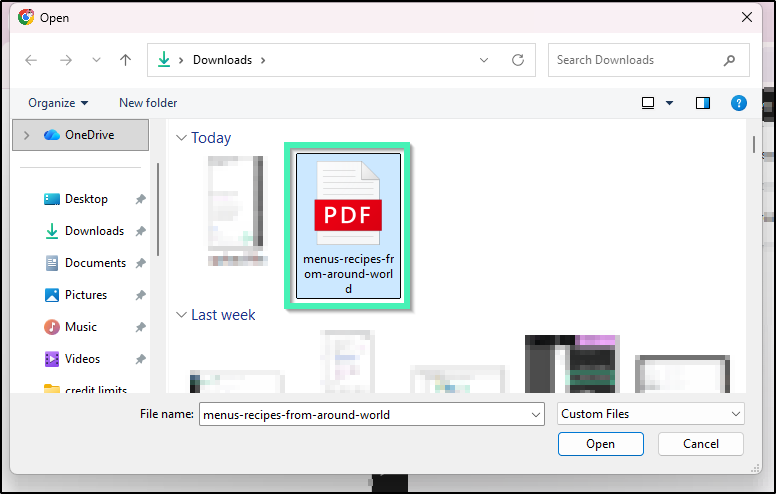
- Select Your File: Browse your local system files in the file picker dialog, select your target document (such as a PDF or DOCX file), and click the Open button.
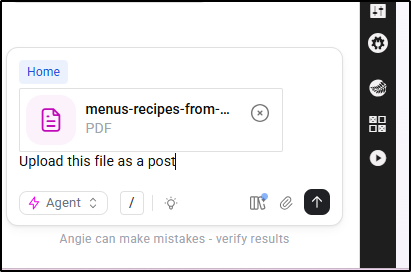
- Submit Your Request: Enter your instructions into the prompt box (such as “Upload this file as a post”), specify any required post titles or layout instructions, and click the Submit (Up Arrow) button.
- Confirm Post Details: Review the post specifications generated by Angie. When prompted, verify key metadata, including:
- Post Title
- Author Assignment
- Categories and Tags
- Finalize Content: Open the newly generated draft in the WordPress Block Editor (Gutenberg) or Elementor Editor to review layout formatting and publish the post.