You can customize the color of the links in your site using:
- Site Settings – This will change the color of the links throughout your site
- CSS code – This will change the color of the links in an individual element
These two methods are not mutually exclusive – You can use Site Settings to change your site’s link color to purple while using code to change the color of the links in a Text Editor widget to red.
Change the link color using Site Settings
Changing the link color using Site Settings will change all the link colors throughout your site.
To choose a link color:
- From the top bar in the Elementor Editor, click on Logo.
Select Site Settings in the menu.
The Site Settings options appear in the panel.
- In the panel, click Typography.

- Click Normal to set a default color for the link or click Hover to select the color of the link when a user mouses over it.

- In the Link section, select a color. For more details, see Choose a color.
The links throughout your site will appear in the chosen color(s)
Change the link color of an element
You can use code to set the link color of an individual element. This will override the color chosen in Site Settings. The color can be set:
- Directly into the element with HTML
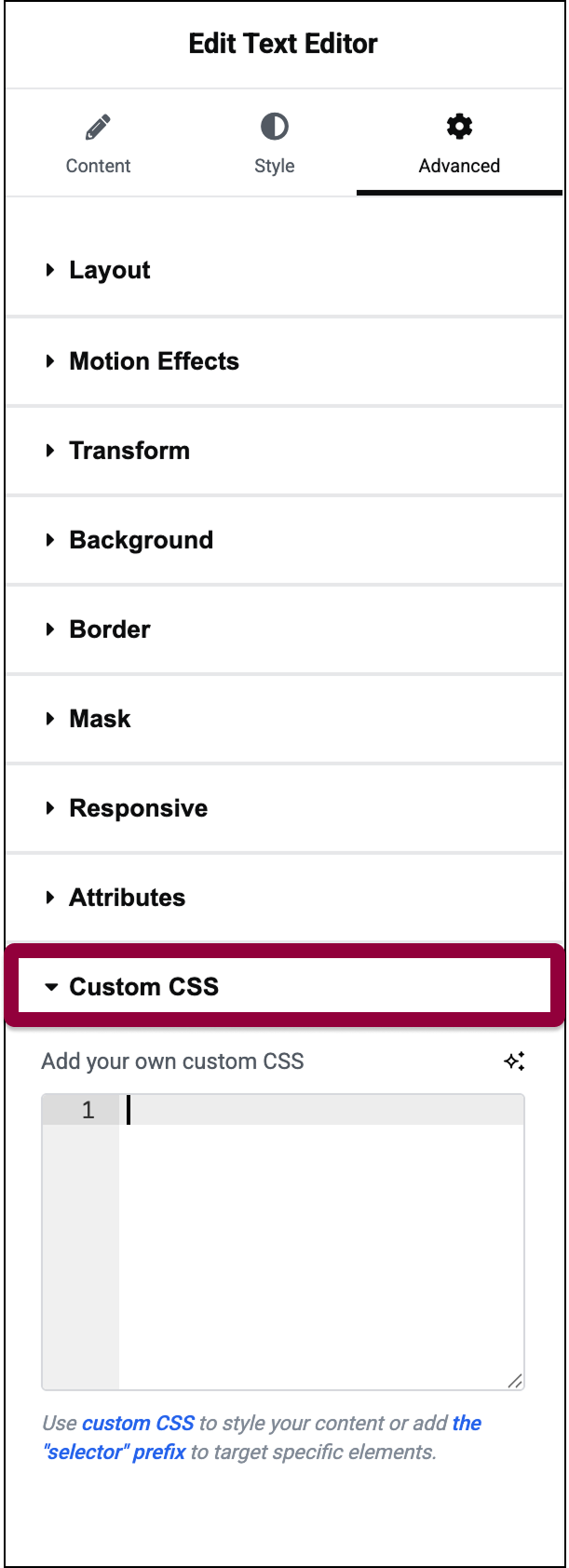
- With custom CSS
Set a link color with HTML
- Click the element whose link color you want to change.

The element options appear in the panel.
- In the text box, enter the HTML code below:
<a style="color:purple;" href="#">My purple link</a>
Note
- Substitute purple with the color you want to use
- Substitute # with the URL of the page you want to link to.
- Substitute #My purple link with the text you want to appear.