Web Programming
LEC # 4, 5, 6
2

Outlines



HTML



HTML Forms
3

HTML



What is HTML?


HTML is a language for describing web pages.



HTML stands for Hyper Text Markup Language



HTML is a markup language



A markup language is a set of markup tags



The tags describe document content



HTML documents contain HTML tags and plain text



HTML documents are also called web pages
4

HTML Tags



HTML markup tags are usually called HTML tags



HTML tags are keywords (tag names) surrounded by angle
brackets like <html>



HTML tags normally come in pairs like <b> and </b>



The first tag in a pair is the start tag, the second tag is the end
tag



The end tag is written like the start tag, with a forward
slash before the tag name



Start and end tags are also called opening tags and closing
tags
<tagname>content</tagname>
5

HTML Headings



<h1>This is heading 1 - 24 points</h1>



<h2>This is heading 2- 18 points </h2>



<h3>This is heading 3- 14 points </h3>



<h4>This is heading 4- 12 points </h4>



<h5>This is heading 5- 10 points </h5>



<h6>This is heading 6- 08 points</h6>
6

HTML <p> and <pre> tag

Tag

Purpose

<pre>

Defines preformatted text

<p>

Define paragraph

<p>This is some text in a paragraph.</p>
Align= left, right, center, justify
7

HTML Text Formatting

Tag

Purpose

<b> and <strong>

To Bold Text

<i> and <em>

To italic Text

<sup>

Defines subscripted text

<sup>

Defines superscripted text

<small>

Defines smaller text

<big>

Defines bigger text

<ins>

Defines inserted text

<del>

Defines deleted text

<mark>

Defines marked/highlighted text
8

HTML Comments



The comment tag is used to insert comments in the
source code. Comments are not displayed in the
browsers.



You can use comments to explain your code, which
can help you when you edit the source code at a
later date. This is especially useful if you have a lot of
code.



<!-- Comments here -->
9

HTML Images



In HTML, images are defined with the <img> tag.



The <img> tag is empty, which means that it contains attributes only ,
and has no closing tag.



To display an image on a page, you need to use the src attribute. Src
stands for "source". The value of the src attribute is the URL of the image
you want to display.



Syntax for defining an image:
<img src="url" alt="some_text">
10

HTML Images Cont.…


<img border="2" src="WTH.jpg" alt=" Road map " width="304"
height="228" title="Hello">
Attribute Purpose
1

Border

Define the border around the image

2

Src

Defines the path of image

3

Width

Defines the width of image

4

Height

Defines the height of image

5

Title

Defines the tool tip

6

Alt

Specifies extra information about an element

7

hspace

Specifies the whitespace on left and right side of an
image

8

Vspace

specifies the whitespace on top and bottom of an image
11

HTML Font



The <font> tag specifies the font face, font size, and
font color of text.
Attribute
Purpose
Color

Defines the color of text. Values can be defined
in the form of RGB code, name of color

Size

Size of the font

Face

Family of the font

<p> <font size="3" color="red" face="Times New Roman" >
This is some text!</font></p>
12

HTML Tables



Tables are defined with the <table> tag.



A table is divided into rows (with the <tr> tag), and
each row is divided into data cells (with the <td>
tag). td stands for "table data," and holds the
content of a data cell. A <td> tag can contain
text, links, images, lists, forms, other tables, etc.
13

HTML Tables Cont.…

Tag

Purpose

<table>

Defines a Table

<th>

Define Table Heading

<tr>

Defines table Row

<td>

Defines Table data

<caption>

Defines Caption of the Table
14

HTML Tables Cont.…
Attribute

Purpose

Align

To align the contents ( left, center, right)

Border

Create border

Cellpadding

create more white space between the cell
content and its borders.

Cellspacing

increase the distance between the cells.
15

HTML Lists



Type of Lists are


Ordered List ( <ol> )



Un- Ordered List ( <ul> )



Description List ( <dl> )

Ordered list uses the numbers
Unordered list uses the Built
A description list is a list of terms/names, with a description of each
term/name.
16

HTML Ordered List



An ordered list starts with the <ol> tag. Each list item
starts with the <li> tag.



The list items are marked with numbers.

<ol>
<li> CPU</li>

<li> RAM </li>
<li> USB </li>
<li> Laptop </li>

</ol>
17

HTML Ordered List Cont.…



By Default its numbered list. If we want to changes
its default type of list we can do it via Type attribute:

<ol type= "A">
<li> CPU</li>
<li> RAM </li>

<li> USB </li>
<li> Laptop </li>

</ol>
18

HTML Un Ordered List



An unordered list starts with the <ul> tag. Each list
item starts with the <li> tag.



It have three types


Disc



Circle



Square

By default un-ordered list is Disc type
19

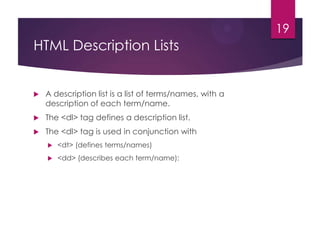
HTML Description Lists



A description list is a list of terms/names, with a
description of each term/name.



The <dl> tag defines a description list.



The <dl> tag is used in conjunction with


<dt> (defines terms/names)



<dd> (describes each term/name):
20

Description Lists Example



<dl>
<dt>Coffee</dt>
<dd>- black hot drink</dd>

<dt>Milk</dt>
<dd>- white cold drink</dd>
</dl>
21

HTML Hyperlinks (Links)



The HTML <a> tag defines a hyperlink.



A hyperlink (or link) is a word, group of words, or image that you can
click on to jump to another document.



When you move the cursor over a link in a Web page, the arrow will
turn into a little hand.



The most important attribute of the <a> element is the href attribute,
which indicates the link's destination.



By default, links will appear as follows in all browsers:


An unvisited link is underlined and blue



A visited link is underlined and purple



An active link is underlined and red
HTML Links - The id / name
Attribute


The id attribute can be used to create a bookmark
inside an HTML document.



Tip: Bookmarks are not displayed in any special way.
They are invisible to the reader.



An anchor with an id inside an HTML document:
<a id="tips">Useful Tips Section</a>



Create a link to the "Useful Tips Section" inside the
same document:



<a href="#tips">Visit the Useful Tips Section</a>

22
HTML Links - The id / name
Attribute

23



Or, create a link to the "Useful Tips Section" from
another page:



<a href="html_links.htm#tips">
Visit the Useful Tips Section</a>
24

HTML Link



Opens specified link on another window.



<a href="http://www.w3schools.com"
target="_blank">

Visit W3Schools.com! </a>
25

Image as Link
<a href="default.asp">
<img src=“image.gif" alt="HTML tutorial" width="42"
height="42">
</a>
26

HTML Iframes ( inline Frames)



An iframe is used to display a web page within a web page.

Syntax for adding an iframe:
<iframe src="URL"></iframe>


Iframe - Set Height and Width



The height and width attributes are used to specify the height
and width of the iframe.



The attribute values are specified in pixels by default, but they
can also be in percent (like "80%").
27

HTML Iframes



<iframe src="demo_iframe.htm" width="200"
height="200“></iframe>



Iframe - Remove the Border

<iframe src="demo_iframe.htm"
frameborder="0"></iframe>
28

Use iframe as a Target for a Link



<iframe src="demo_iframe.htm“
name="iframe_a">



</iframe>
<p>
<a href=http://www.w3schools.com
target="iframe_a">W3Schools.com</a>
</p>
29

HTML <frameset> Tag



The <frameset> tag defines a frameset.



The <frameset> element holds one or more <frame> elements.
Each <frame> element can hold a separate document.



The <frameset> element specifies HOW MANY columns or rows
there will be in the frameset, and HOW MUCH percentage/pixels
of space will occupy each of them.
30

HTML <frameset> Tag



The <frameset> tag defines a frameset.



The <frameset> element holds one or more <frame> elements.
Each <frame> element can hold a separate document.



The <frameset> element specifies HOW MANY columns or rows
there will be in the frameset, and HOW MUCH percentage/pixels
of space will occupy each of them.

Attribute

Purpose

Rows

Specifies the number and size of columns in a frameset
(%, pixels, *)

Cols

Specifies the number and size of rows in a frameset
(%, pixels, *)
31

Example of Frameset
<frameset rows="25%,*,25%">

<frameset cols="25%,*,25%">

<frame src="headings.html">

<frame src="headings.html">

<frame src="Tables.html">

<frame src="Tables.html">

<frame src="textFormating.html"> <frame src="textFormating.html">
</frameset>

</frameset>
32

Block and inline Elements



Most HTML elements are defined as


block level elements



inline elements.



Block level elements normally start (and end)
with a new line when displayed in a browser.



Examples: <h1>, <p>, <ul>, <table>, <div>
33

HTML Inline Elements



Inline elements are normally displayed
without starting a new line.



Examples: <b>, <td>, <a>, <img>, <span>
34

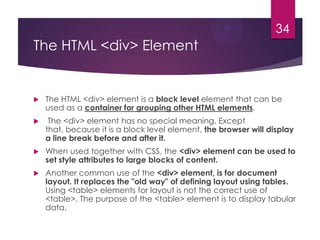
The HTML <div> Element



The HTML <div> element is a block level element that can be
used as a container for grouping other HTML elements.



The <div> element has no special meaning. Except
that, because it is a block level element, the browser will display
a line break before and after it.



When used together with CSS, the <div> element can be used to
set style attributes to large blocks of content.



Another common use of the <div> element, is for document
layout. It replaces the "old way" of defining layout using tables.
Using <table> elements for layout is not the correct use of
<table>. The purpose of the <table> element is to display tabular
data.
35

The HTML <div> Element Cont.…



The <div> tag defines a division or a section in an HTML document.



The <div> tag is used to group block-elements to format them with
CSS.



Tip: The <div> element is very often used together with CSS, to
layout a web page.



Note: By default, browsers always place a line break before and
after the <div> element. However, this can be changed with CSS.
36

The HTML <span> Element



The HTML <span> element is an inline element that can be used as
a container for text.



The <span> element has no special meaning.



When used together with CSS, the <span> element can be used
to set style attributes to parts of the text.
37

HTML Layouts



Web page layout is very important to make your website
look good.



Design your webpage layout very carefully.
38

HTML Forms


HTML Forms are used to select different kinds of user
input.



HTML forms are used to pass data to a server.



An HTML form can contain input elements like text
fields, checkboxes, radio-buttons, submit buttons and
more. A form can also contain select
lists, textarea, fieldset, legend, and label elements.



The <form> tag is used to create an HTML form:



<form>
.
input elements
.
</form>
39

HTML Forms - The Input Element



The <input> element is used to select user
information.



An <input> element can vary in many
ways, depending on the type attribute. An <input>
element can be of type text
field, checkbox, password, radio button, submit
button, and more.
40

Text Fields




<input type="text"> defines a one-line input field that a user can enter
text into:

<form>
First name: <input type="text"
name="firstname"> <br>
Last name: <input type="text"
name="lastname">
</form>
41

Password Field



<input type="password"> defines a password field:



<form>

Password: <input
type="password" name="pwd">
</form>

Note: The characters in a password field are masked
(shown as asterisks or circles).
42

Radio Buttons


<input type="radio"> defines a radio button. Radio buttons let a user
select ONLY ONE of a limited number of choices:

<form>
<input type="radio" name=“choice"
value=“yes“ checked=“checked”>Yes
<br>
<input type="radio" name=“choice"
value=“no">No
</form>


Checked attributed defines that control is preselected when page
load.
43

Checkboxes



<input type="checkbox"> defines a checkbox.
Checkboxes let a user select ZERO or MORE options
of a limited number of choices.



<form>
<input type="checkbox" name="vehicle"
value="Bike">I have a bike<br>
<input type="checkbox" name="vehicle"
value="Car">I have a car
</form>
44

Submit Button



<input type="submit"> defines a submit button.



A submit button is used to send form data to a
server. The data is sent to the page specified in the
form's action attribute. The file defined in the action
attribute usually does something with the received
input:



<form name="input" action="html_form_action.php"
method="get">
Username: <input type="text" name="user">
<input type="submit" value="Submit">
</form>
45

Reset Button



Button used to clear all the field of form in which
reset button defined.



<input type=“reset" value=“Clear">
46

HTML <button> Tag



The <button> tag defines a clickable button.



Inside a <button> element you can put content, like
text or images. This is the difference between this
element and buttons created with the <input>
element.



Tip: Always specify the type attribute for a <button>
element. Different browsers use different default
types for the <button> element.
47

HTML <textarea> Tag



The <textarea> tag defines a multi-line text input
control.



A text area can hold an unlimited number of
characters, and the text renders in a fixed-width
font (usually Courier).



The size of a text area can be specified by the cols
and rows attributes, or even better; through CSS'
height and width properties.
48

HTML <textarea> Tag

Attribute

Purpose

Name

Specifies a name for a text area

Cols

Specifies the visible width of a text area

Rows

Specifies the visible number of lines in a text area

Disabled

Specifies that a text area should be disabled
49

HTML <select> Tag



The <select> element is used to create a drop-down
list.



The <option> tags inside the <select> element
define the available options in the list.



Tips and Notes



Tip: The <select> element is a form control and can
be used in a form to collect user input.
50

HTML <select> Tag



<select multiple size=“2”>
<option value="volvo">Volvo</option>
<option value="saab">Saab</option>
<option value="mercedes">Mercedes</option>
<option value="audi">Audi</option>
</select>



Note: Multiple shows that you can select more than one item from the drop
down menu.



Size shows number of visible items in a list.
51

References



http://www.w3schools.com/html/default.asp