LinkedIn
 The world’s largest professional network with over 300
million registered members in 200 countries and
territories worldwide.
 Executives from all Fortune 500 companies are members
and 66% of LinkedIn users are decision makers or have
influence on purchasing decisions for their companies.
 Average household income is $109,000 – highest social
media site.
Business Goals
 Driving more traffic to your website
 Getting media attention
 Promoting your events
 Interacting with professionals from around the globe
 Obtaining free advice from top consultants on urgent
business issues
Profiles
 First step in controlling your professional identify online.
 Authoritative source on your career.
 Represents your career accomplishments and opens the
door to new opportunities.
 Communicates your professional brand.
 Enables people to connect and reconnect with you.
 Strong profiles contain an executive summary, your skill
set, education, 3 recent positions and 3
recommendations.
 Hover over any section to edit.
6
Your Power Profile
 100% Complete
 All Star profile bring benefits – you show up in more
searches for your expertise
 Current position with description
 Industry and postal code
 At least 2 past positions
 Education
 At least 5 skills
 A profile summary and photo
 At least 50 connections
Profile is mini website
 Multidimensional marketing tool for yourself and your
company
 Make sure everything on your profile is client-focused and
benefits-oriented
 Text should be scannable, easily digestible bites of
information
Profile
 Professional headshot
 Great Professional Headline
 List of skills separated by pipe |
 Bridget Gibbons | Digital Media Consultant | Customized Social
Media Training
 Benefit statement approach
 Top Graphic Designer Makes All Your Promotional Materials Pull
Customers in Like a Magnet
 Helping Small Businesses and the Tri-State Area Leverage Social
Media to Grow Their Business
 Concise, compelling and Value-Driven
10
11
12
13
14
Experience
 Add at least 3 recent positions.
 Provide details on your responsibilities. This dramatically
helps improve search results.
 Hover over this section to see edit pencils.
15
16
17
18
19
20
Education
 Include detail about your formal education. Let’s people
you’ve known in the past connect with you.
 Where and what you’ve studied provides insights into
your professional expertise.
 Opens up valuable connections to Alumni, Professors or
others with similar backgrounds.
21
22
23
24
25
26
Recommendations
 Quick way for people to get a sense of your strengths as a
professional and for you to help out your connections in a
few simple steps.
 Click on “Asked to be Recommended” on any position on
your profile and select which connection can speak to
your work at that position.
 They’ll submit a brief recommendation for your approval.
 You can control which recommendations to display by
clicking “Manage”
27
Optimizing Your Profile to Be
Found in Searches
 What do you want to be known for? What’s your
specialty? What sets you apart?
 Determine which phrases you want to be found for and
integrate them into the key aspects of your profile
29
Four Required Places for Your
Keywords
 Headline – one of the key areas LinkedIn considers when
ranking you in search results
 Current Work Experience – This is the 2nd place LinkedIn
looks, make sure keywords are in the job title.
 CEO is less helpful, consider changing to what you do rather
than your title
 Past Work Experience – LinkedIn will rank you higher for
keywords in your past job titles
 Summary – include keywords in your value driven,
benefits oriented summary. You have 2000 characters –
use them!
Advanced Optimization
Strategies
 Having more recommendations and connections
 Having a paid account
 Create word cloud to see what’s important to you –
wordle.net
32
33
Recommendations
 To recommend the strong work of a colleague or business
partner, visit their profile and click “Recommend” be sure
to include specific details in your recommendation.
 An authentic recommendation helps people to get a
sense of what it’s like to work with this person.
35
37 From Mashable
Messages
 Center of communication
 Take action on messages
 Flag, delete, archive or mark messages as read or unread
 Filter messages by type and sort by name, date, or
subject
38
40
Connections
 2nd degree are people who are connected to your 1st-
degree connections.
 3rd degree people who are connected to your 2nd-degree
connections.
 If their full first and last names are displayed, you will be
able to send them an invitation by clicking Connect.
 If only the first letter of their last name is displayed, clicking
Connect is not an option but you can still contact them
through an InMail or an introduction.
41
Add Connections
 You can ask someone to join your network by sending
them an invitation to connect.
 If they accept your invitation, they become a 1st-degree
connection.
 Normally recommend that you only send invitations to
people you know well.
42
44
45
Search
 Like Google, enter a keyword
 Search your own connections and groups.
 Find and reconnect with people, or look for new
connections by company, expertise, or education.
 Filter search results by powerful facets like location,
industry, language, and more.
48
49
50
51
People You May Know
 Quickly helps you find people and build professional
relationships.
 Find people from the home page or under the Contacts,
Add Connections menu item.
 You can ask someone you recognize to connect, remove
someone you don’t know (x) or click through to their
profile to learn more about them.
 When viewing the complete list, you can filter by where
they work, used to work or where they went to school.
 You can assess the people you have in common.
52
54
55
56
Groups
 Quickly discover the most popular discussions in your professional
groups.
 Have an active part in determining the top discussions by liking and
commenting.
 Follow the most influential people in your groups by checking the
Top Influencers board or clicking their profile image to see all their
group activity.
 See both member-generated discussions and news in one setting.
 Easily browse previews of the last three comments in a discussion.
 Find interesting discussions by seeing who liked a discussion and
how many people commented.
57
Groups
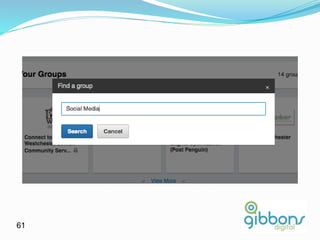
 Search for your industry or a career keyword, and find a group that fits
your interest.
 Once you’ve been accepted to the group you can share relevant content by
starting a discussion or posting a link in the share box.
 Sharing consistently is a good way to quickly identify yourself as an expert
in your field or industry.
 Click on your photo to see your updates as well as what’s changed in the
discussions you’ve started, joined or followed.
 Good way to keep track of discussions most important to you and your
career.
 After sharing, check out the newest discussions in the slide show below,
and cast your vote by liking or commenting.
 Under each discussion you’ll see the last 3 members who have
commented, click on the headline to see all comments.
61
62
63
Groups
 On Members tab you can review all group members, see how closely
you’re connected to them, and send a message.
 You can review new members or search for specific members.
 Some groups feature a jobs tab where you can review jobs posted by other
group members, or post a job of your own to increase distribution for the
opening.
 Click on the search tab when looking for a specific topic across all
discussions.
65
66
67
68
Post LinkedIn Updates Regularly
 One way in which a large network benefits you is if you
are posting LinkedIn status updates on a regular basis.
 Everyone you are connected to can see them on their
home page.
 Demonstrate that you’re a valued resource and someone
worth getting to know.
 Limited your updates to a couple a day
 Restrict updates to business topics – everything you do
and say on LinkedIn is branding you.
Guidelines for LinkedIn Updates
 Share helpful information – Links to articles, case studies
on your website, upcoming event that will help people in
your network.
 Stir people’s curiosity – provide something that makes
people want to learn more “Read this case study to see
how one company increased client loyalty by 20 percent.”
with a link.
 Announce business events – use updates to alert others
about large sales your company just made or upcoming
events where you will have a booth.
Jobs – Posting a Job
 Discover active and passive job candidates.
 Attract the highest quality candidates (rated 3-to-1 versus job
boards in a survey).
 Get viral distribution: jobs are forwarded an average of 11 times,
seen 400 times and receive 30 applications.
 Discover passive candidates with proprietary matching technology.
 Draw attention to your opening with appearances in search results
and immediate posting to Twitter.
 Let your applicants see how they’re connected to the company for
high-quality referrals.
 Review all candidates with a simple web interface.
72
Jobs – Posting a Job
 Candidates can apply directly for the job, identify
connections who work at your company, and forward the
job to their connections.
 You can specify whether or not to include your picture,
and a link to your profile on the listing so that candidates
in your network can reach out to you directly.
 You decide if you want to receive applications via email or
your website.
 Real-time profile matching across LinkedIn
25 best matching profiles
75
Jobs – looking for a job
76
77
78
79
Account Settings
 From this page, you can:
 Change your primary email and password.
 Compare account types and see how many InMails and
introductions you have left.
 Manage any jobs or LinkedIn Ads you've purchased.
 View and manage settings for your:
 Profile
 Email Preferences
 Group, Companies and Applications
 Account
80
81
82
Company Pages
 Promote your company or the company you work for and
provide an entertaining, multimedia display of
information
 Use the company page as of the most powerful
prospecting and information tools you will ever use to
seek new business, find new opportunities, stay up to
speed on your industry
83
Company Page
 Specialties, website, industry, type, headquarters,
company size
 Logo and cover image
86
87
In Summary
 Cover the basics – 100% complete profile
 Get meaningful recommendations
 Post updates
 Join groups
88