Download to read offline
- 1 / 28

- 2 / 28

- 3 / 28

- 4 / 28

- 5 / 28

- 6 / 28

- 7 / 28

- 8 / 28

- 9 / 28

- 10 / 28

- 11 / 28
![ Create new Console Application in IntelliJ IDEA: [New Project]
[Java] [Template Command Line App] [Finish]
Creating a Console Application in IntelliJ IDEA
Leave the
package empty](/proxy?url=https%3A%2F%2Fimage.slidesharecdn.com%2Fpart2-211012100742%2F85%2FJava-Tutorial-Part-2-IntelliJ-IDEA-11-320.jpg)
- 12 / 28

- 13 / 28
![ If no JDK is still configured, you should configure it:
Click [New] button and locate your JDK installation:
Configuring JDK in IntelliJ IDEA](/proxy?url=https%3A%2F%2Fimage.slidesharecdn.com%2Fpart2-211012100742%2F85%2FJava-Tutorial-Part-2-IntelliJ-IDEA-13-320.jpg)
- 14 / 28
![ In Java programs, commands are written in main(String[] args)
Between the opening and closing curly brackets { }
Press [Enter] after the opening bracket { and type your commands
The code of the program is written with indentation
Writing Programming Code in IntelliJ IDEA](/proxy?url=https%3A%2F%2Fimage.slidesharecdn.com%2Fpart2-211012100742%2F85%2FJava-Tutorial-Part-2-IntelliJ-IDEA-14-320.jpg)
- 15 / 28
![ To start the program, press [Ctrl + Shift + F10]
If there are no errors, the program will be launched
The result will appear in the console (terminal window):
Starting the Program in IntelliJ IDEA](/proxy?url=https%3A%2F%2Fimage.slidesharecdn.com%2Fpart2-211012100742%2F85%2FJava-Tutorial-Part-2-IntelliJ-IDEA-15-320.jpg)
- 16 / 28

- 17 / 28

- 18 / 28

- 19 / 28

- 20 / 28


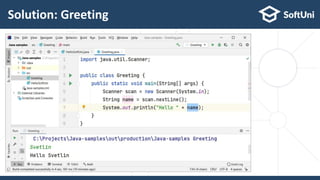


This document provides a tutorial on using IntelliJ IDEA, a powerful integrated development environment (IDE) for Java development. It covers installation, creating and running console applications, configuring the Java Development Kit (JDK), and writing Java code. Additionally, it offers practical exercises for beginners and encourages joining the Softuni community for further learning and support.


