Git & GitHub
Md. Ahsan Habib
Email: habib@cse.green.edu.bd
Cell: 01515626136
Outcomes
• Commit
• Push
• Pull
• Clone
• Fetch
• Merge
• Diff
• Branching
• Git GUI
• Fork
• .gitignore
Theory
Git - Version Control System
 Version control is a system that records changes to a file or
set of files over time so that you can recall specific
versions later.
Design 1 Design 2
Branch
Master Branch
Branch 1
Branch Contd..
Branch 2
Branch Contd..
Repository
Repository Contd..
Repository Contd..
Practical
Initialization
 Create a folder in any directory. For example, I created a folder
named “Coffee” in my desktop.
 Then open Git Bash here.
 Then type “git init” for initialization.
 Now you can see “.git” folder in you “Coffee”
directory.
Configuration
 To set username globally:
git config --global user.name “nayan”
 To set email globally:
git config --global user.email “habib@cse.green.edu.bd”
 To set username and email locally:
git config user.name “nayan”
git config user.email “habib@cse.green.edu.bd”
 Now type “git config --list” to show your configuration.
Commands
 To clear your screen just type:
clear
 Let’s create two files in “Coffee” dir.
 cold.txt
 hot.txt
 Now type:
git status
Commands
 Let’s use add command:
git add cold.txt
 Now type:
git status
Commands
 Add all files using single command:
git add --all or
git add .
 Now type:
git status
Commit
Commit
 Staging area to Local repo:
git commit –m “Added two files”
 Now type:
git status
 Let’s commit again:
 First create a file “chocolate.txt” in “Coffee”.
 Now add this file.
 Then commit.
Commit
 To show our commit:
git log
 Another way [Simple]:
git log --oneline
Commit
 Let’s write something in cold.txt file.
 Now type:
git status
 Let’s commit again:
 Add the changed file [cold.txt].
 Then commit.
 Now use git log command to show commits.
Checkout
Checkout
 Let’s we need to go back our previous version of cold.txt.
 Can we do that?
 Yes, It’s simple. Just use checkout command.
 To do this.
 First log the commits.
 Then use checkout using commit id.
 You can see that you cold.txt file got
empty again.
 Note: we are not in master branch
now.
Checkout
 Let’s use git log again. You can see there are only two
commits exist.
 Can you switch one of the commit-ids ?
 Have a try 
 Let’s back to our master branch.
Diff
Diff
 Let’s compare two files. We have to use git diff command.
 To do this.
 First add some text in chocolate.txt.
 You can use git status to show if
chocolate.txt changes or not.
 Then use git diff comman.
 You can see the changes.
 Note: git diff always works between
latest changes.
Diff
 To show changes at a particular commit you can use git
show with commit-id.
Diff
 We haven’t add the updated chocolate.txt file yet. Just
add this file. Then commit it.
 Now we again added some text in chocolate.txt file. Then
add and commit it.
 Using git log you can see like this.
 Now we want to show differences between
two chocolate.txt files [previous and current].
 To do use use git diff with two commit-ids.
git diff id1 id2
Diff
 What if we want to see the differences in the staged
section ie. Afer adding and before commit.
 Use: git diff --staged
 To do this:
 Update chocolate.txt again. Use git diff to
show changes.
 Now use git add command. If you want to
show changes now and use git diff command it
shows nothing.
 To show changes use:
Git diff --staged
Remove
Remove file
 How can we delete a file?
 If you delete from “Coffee” directory then it is
removed from current stage [not all commits].
 What if we want to delete permanently ie.
delete a file from all commits ?
 We have to use: git rm file_name
 It deletes the file from all commits.
 If we run git status then we can see that the
hot.txt file is in staged section. If we want to
delete from staged section then we have to
use: git reset HEAD hot.txt. Now again run git
status command to see the chages.
Let’s Store/Push the files into
Remote Repository!!
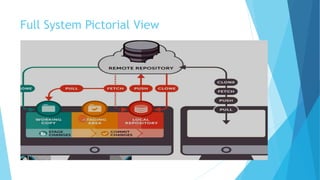
Full System Pictorial View
Push
 How can we push the files into Remote Repo?
 To do this:
 We need to have a github account.
 Now let’s create a Repository.
 Then follow some steps.
 Copy the remote repo link and run in the Bash Terminal.
 Use push command.
 Now refresh your repo.
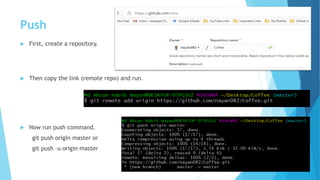
 Let’s see graphically.
Push
 First, create a repository.
 Then copy the link (remote repo) and run.
 Now run push command.
git push origin master or
git push –u origin master
Repository
 We can see here all commits
we have done.
 And we can go back any stage
of those commits.
Download/Clone from Remote
Repository!!
Clone
 How can we download/clone the projects into Remote Repo?
 To do this:
 We can download as a zip or
 We can clone the repo.
Clone
 To clone the repository copy the project link and run the command:
git clone repo_link
 The folder named with the repository name.
 If you want to assign a different name use:
git clone repo_link new_name
Fetch
Fetch
 First, let’s change cold.txt file (add a line into cold.txt) and make a
commit (from remote repo).
 To fetch the repository we use:
git fetch
Fetch
 Now run git status to see the commit.
 Now let’s check the cold.txt file. Can you see any update ?
 No. Our machine only know that something changes. And they suggest us
to use git pull command.!!
 Now use: git pull. Now check the cold.txt file.
Branch
Branch
 To create a branch we use:
git branch branch_name
 To check how many branch we have:
git branch
 * Sign represent the current branch.
Branch
 To switch a branch we use:
git checkout branch_name
 We can create and switch at a time to the branch using:
git checkout -b branch_name
Branch
 Now we are in “new1_branch”. Anything changes in the Coffee
repository, the changes will be happen in the new1_branch not affects
other branches(master, new_branch).
 Let’s create a file in the current branch (new1_branch) and use git add
and commit command.
 If you switch to master branch, you can see the changes in the Coffee
repo.
Merge
Merge
 If you want to merge/add all the changes in the master branch. You can
run:
git merge new1_branch
 By running this you can see the changes happen to the master branch.
Delete a Branch
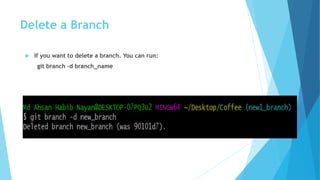
 If you want to delete a branch. You can run:
git branch -d branch_name
GitIgnore
Git Ignore
 If you want some files do not need to be commit or add we can make a list of them into
“.gitignore” file.
 Let’s first create a file which should be ignored (ex: no_need.txt).
 Now we need to create “.gitignore” file and write no_need.txt inside it. Now run git
status, you can see that the no_need.txt file not be tracked.