Add Apple Loops to your Logic Pro for iPad project
After searching for loops in the Browser, you can preview them to find the one that sounds best in your project. When you preview a loop, you can hear it by itself (solo) or play it together with the project. You can add a loop by dragging it to the appropriate track in the Tracks area. You can also add it directly to a new track, or use the loop to create a new track for Quick Sampler, Sample Alchemy, or Drum Machine Designer.
Unless changed in the New Project Settings window, new projects default to a project tempo of 120 bpm and a key of C major. If the first region added to a project is an Apple Loop (that is, before any audio or MIDI has been added or recorded to the project), the project tempo and key are adjusted to match the Apple Loop. If you already established a project tempo and key signature (either by recording directly into the project or adding material), Apple Loops automatically conform to the current project tempo and key signature. If you subsequently change the project tempo, Apple Loops automatically conform to the new tempo. If you create key changes on the Signature track, the regions created from the loops follow the key changes and are transposed to the new key. See Transposition and the Pitch Source parameter.
View Apple Loops in the Browser
In Logic Pro, tap the Browser button
 , then tap Loops.
Preview a loop
In Loops view in the Browser in Logic Pro, tap the Preview button to the left of the loop name.
A waveform for the preview appears near the bottom of the Browser.
Tap anywhere inside the waveform to start the preview from that point.
Tap the Preview Volume button at the bottom of the Browser, then drag the Volume slider to adjust the volume of the loop you’re listening to.
Tap the Preview button again to stop the preview.
Tip: To quickly preview one loop after another, touch and hold a Preview button, then drag up or down.
Filter loops by type
In Logic Pro, you can filter loops in the Browser list to show loops of only a particular type: audio, MIDI, pattern, or Session Player.
In Loops view in the Browser, tap the All Filters button
 .
.In the Type category, choose one or more loop types.
Filter loops by musical properties
In Logic Pro, you can filter loops in the Browser list by various musical properties, including feel, key signature, part, swing, time signature, and tonality.
In Loops view in the Browser, tap the All Filters button
.In the Musical Properties category, choose one or more musical properties.
Add a loop to your project
In Loops view in the Browser in Logic Pro, touch and hold a loop, then do one of the following:
Drag a loop to an empty area of the Tracks area, below the existing tracks.
A new track of the appropriate type (audio or software instrument) is created, and the loop is added to the new track.
Drag an audio loop (blue) to an audio track.
Drag a MIDI loop (green), a pattern loop (violet), or a Session Player loop (yellow) to a software instrument track.
Drag a MIDI loop (green), a pattern loop (violet), or a Session Player loop (yellow) to an audio track to convert it to an audio loop.
Add chords from Apple Loops to your project
In Logic Pro, many Apple Loops contain chords that you can use in your project. If you add loops with chords to the tracks area, you can keep the chords in the resulting region or add them to the Chord track to quickly create a harmonic structure for Session Players.
Apple Loops with chords have the Chord symbol  under the loop name in the Browser. See Intro to chords.
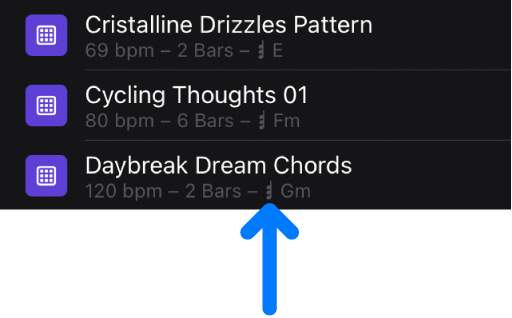
In Loops view in the Browser in Logic Pro, tap the More button
 , tap Loop Chords, then choose one of the following options:
Keep Region Chords: When you drag an Apple Loop with chords to the Tracks area, it follows the region chords it contains.
Apply Region Chords to Chord Track: When you drag an Apple Loop with chords to the Tracks area, the region chords contained in the loop are pasted to the Chord track at the position where you drag the loop.
Automatic: When you drag an Apple Loop with chords to the Tracks area and there are no chords on the global Chord track at the position where you drag the loop, the region chords are added to the global Chord track at that position. If chords already exist on the Chord track at the position where you drag the loop, the loop follows its region chords. Session Player loops are an exception; If chords exist on the Chord track at the position where you drag a Session Player loop, they follow the chords on the Chord track.
Create a new track with a loop
In the Browser in Logic Pro, tap a loop to select it, tap the More button
, then tap New Track with Loop.A new track is created, and the loop is placed on the track at the beginning of the project.
Place a loop at the playhead position
In Logic Pro, select the track where you want to place the loop.
Place the playhead where you want the loop to start.
In the Browser, tap a loop to select it, tap the More button
, then tap Place Loop at Playhead.
Create a new instrument track with Sample Alchemy, Quick Sampler, or Drum Machine Designer
In the Browser in Logic Pro, touch and hold a loop, then drag it to the empty area below the last track header.
Tap Sample Alchemy, Quick Sampler, or Drum Machine Designer in the “Create new track with” dialog that appears.
Download this guide: PDF