Record a video with your iPhone camera
Use your iPhone camera to record videos. Learn how to record Dual Capture videos, switch between video formats, change modes to take Cinematic, slow-motion, and time-lapse videos, and use Action mode to improve video stabilization.
Note: Video recording isn’t available during a phone or FaceTime call.
Record a video
Open Camera
 on your iPhone.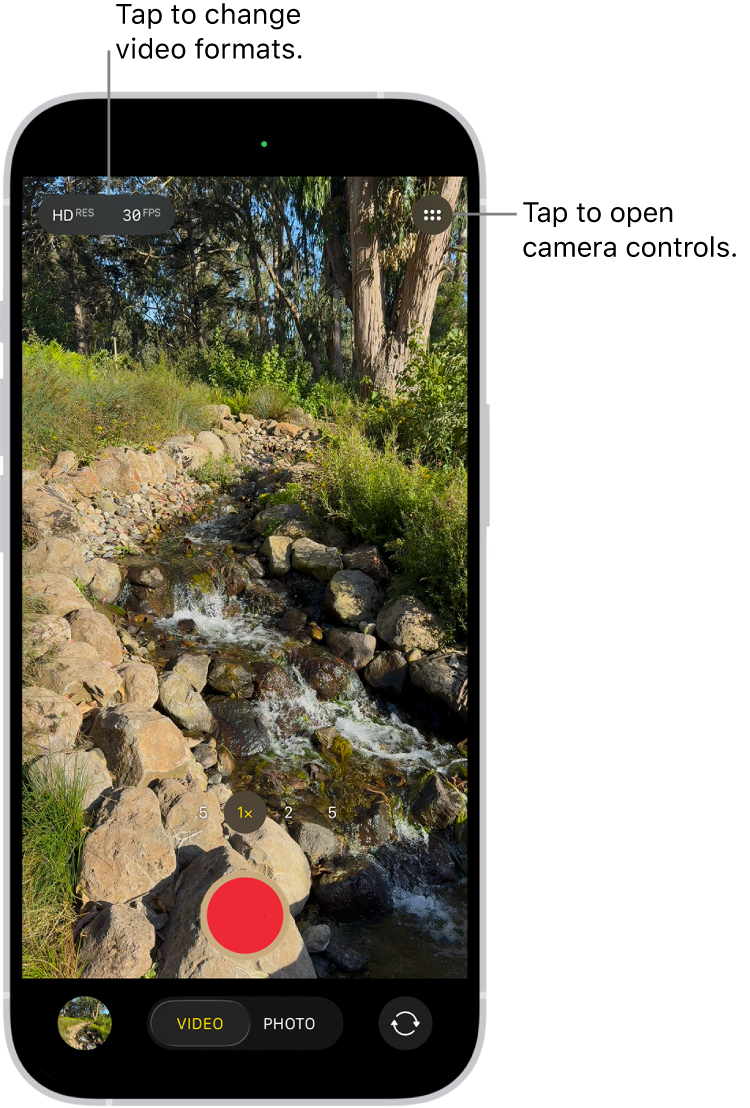
Tap Video to switch to Video mode.
Tap the Record button, press either volume button, or click the Camera Control on (supported models) to start recording. While recording, you can do the following:
Tap the white Shutter button to take a still photo.
Tap the Pause button to pause recording.
Pinch the screen to zoom in and out.
Tap .5x, 1x, 2x, 3x, 4x, 5x, or 8x (depending on your model) to zoom in and out.
For a more precise zoom control, touch and hold 1x, then slide the dial.
On supported models, use the Camera Control to zoom in and out.
Tap the Record button, press either volume button, or click the Camera Control on (supported models) to stop recording.

With supported models of AirPods and AirPods Pro, you can press the AirPod stem to record a video. See Use AirPods or AirPods Pro with supported camera apps in the AirPods User Guide.
If you have an Apple Watch, you can use the Camera Remote to record a video. See Use Camera Remote on Apple Watch in the Apple Watch User Guide.
Note: For your security, a green dot appears at the top of the screen when Camera is in use. See Control access to hardware features on iPhone.
Record Dual Capture video
On iPhone 17, iPhone 17 Pro, iPhone 17 Pro Max, and iPhone Air, you can record Dual Capture video, which allows you to record yourself—and the action in front of you—at the same time.
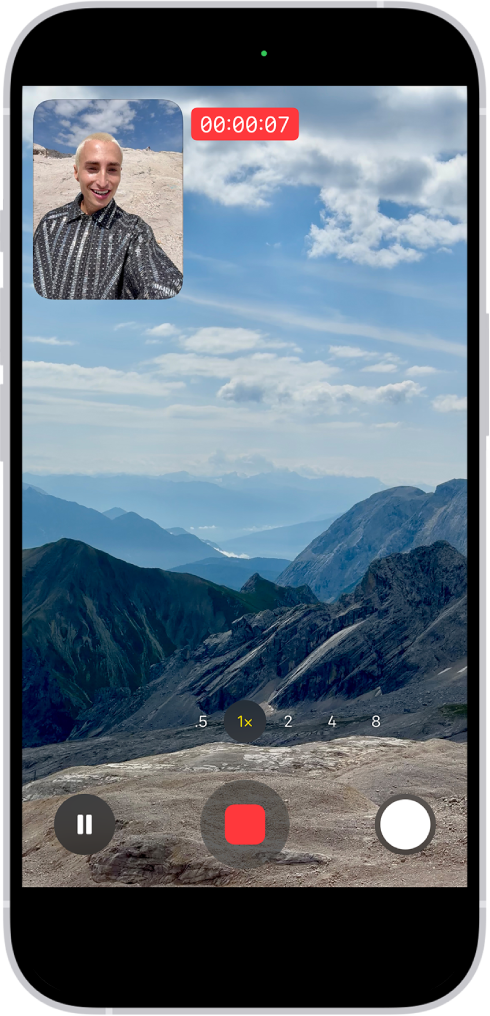
Open Camera
on your iPhone.Select Video mode.
Tap
 , then tap Dual Capture.
Tap the screen to show the Record button, then tap the Record button to start recording.
To turn off Dual Capture, tap
 .
.
Change video recording formats
Depending on your iPhone model, you can record video in high-quality formats, like HD, 4K, HD (PAL), and 4K (PAL). Also depending on your model, you can change the fps rates to 24, 25, 30, 60, or 120.
When Camera is open and Video mode is selected, tap the resolution and frame rate values onscreen to see the formats available on your iPhone. Tap a format option or an fps value to use it.
To enable additional formats, follow the instruction below. Options vary depending on your iPhone model.
Go to the Settings app
 on your iPhone.
Tap Camera, then tap Record Video.
Select from the list of video formats and frame rates that your iPhone supports.
Note: Faster frame rates and higher resolutions result in larger video files.
Videos you record at faster frame rates can be played back at slower speeds in the Photos app. See Trim video length, adjust slow motion, and edit audio.
Note: PAL is a television video format used in many countries and regions in Europe, Africa, Asia, and South America.
Use Action mode
On supported models, Action mode provides improved stabilization while recording in Video mode. Tap , then tap Action. Tap  onscreen to turn it off.
Tip: To always show the Action mode button on your camera screen, go to Settings > Camera > Indicators, then turn on Action Mode.
Action mode works best in bright light. If you want to use Action mode in lower light, go to Settings > Camera, tap Record Video, then turn on Action Mode Lower Light. Action mode has a maximum capture resolution of 2.8K.
Record a video in Photo mode
You can record a video while in Photo mode instead of switching to Video mode. While recording, you can move the Record button into the lock position and take still photos at the same time.
Open Camera
on your iPhone.Touch and hold the Shutter button to start recording.
Slide the Shutter button to the right and let go over the lock for hands-free recording.
Both the Record and Shutter buttons appear below the frame—tap the Shutter button to take a still photo while recording.
Swipe up to zoom in on your subject, or if you’re recording hands-free, you can pinch out on the screen to zoom in.
Tap the Record button to stop recording.
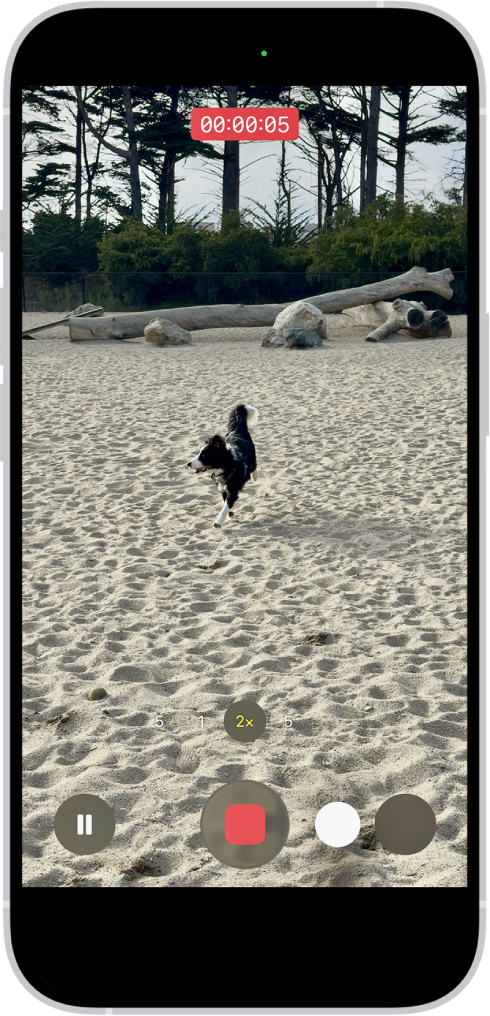
Tip: Press and hold the volume up or volume down button to start recording a video in Photo mode.
On supported models, you can click and hold the Camera Control to record videos in full resolution.
Tap the thumbnail to view the video in the Photos app.
Record a slow-motion video
Slo-mo mode records your video as normal and then plays it back in slow motion. You can edit your video later to choose which parts play in slow motion; see Edit the slow-motion section of a video shot in Slo-mo mode.
Open Camera
on your iPhone.Touch Photo or Video mode, then swipe to select Slo-mo mode.
On supported models, you can tap
 to record in Slo-mo mode with the front camera.
To start recording, tap the Record button, press either volume button, or click the Camera Control on (supported models).
You can tap the Shutter button to take a still photo while recording.
To stop recording, tap the Record button, press either volume button, or click the Camera Control on (supported models).
To set a portion of the video to play in slow motion and the rest at regular speed, tap the video thumbnail, then tap Edit. Slide the vertical bars below the frame viewer to define the section you want to play back in slow motion.
Depending on your model, you can change the slow motion frame rate and resolution. To change slow-motion recording settings, go to Settings > Camera, then tap Record Slo-mo.
Tip: On iPhone 16 Pro models and iPhone 17 Pro models, you can record slow-motion videos in Video mode. Tap the format and resolution values in the corner of the screen, then select 120 FPS.
Record a time-lapse video
Capture footage at selected intervals to create a time‑lapse video of an experience over a period of time—such as a setting sun or traffic flowing.
Open Camera
on your iPhone.Select Time-lapse mode.
Position your iPhone to frame your subject, then place it on a stable surface or tripod.
Tap the Record button or click the Camera Control (on supported models) to start and stop recording.
Tip: On iPhone 12 or later, use a tripod to capture time-lapse videos with more detail and brightness when recording in low-light situations.