Change loop settings for cells in Live Loops for Logic Pro for iPad
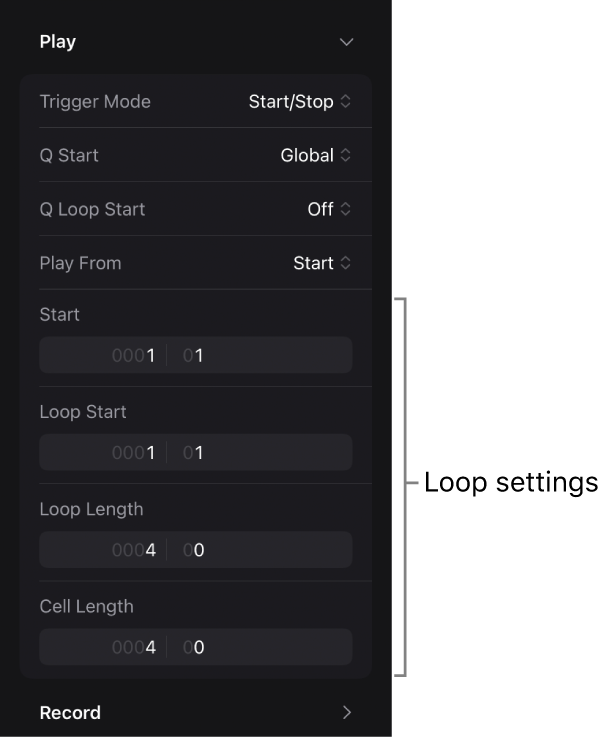
When you turn on Cell Edit mode and select a cell, you can change the loop settings in the Cell inspector. You can create interesting variations by changing the following settings:
Start: Determines the initial starting position of the cell. By default, this is the same as the Loop Start setting, but you can change it so the cell starts at a different place initially than when it loops. This setting is ignored if the Play From setting is set to a value other than Start, or if the Quantize Loop Start position is set to On.
Loop Start: Determines the position in the cell where the loop starts after the initial start and playback of the cell. For example, if you have a cell containing a four-bar piece of musical material, you can change the Start setting so the loop initially starts at the first bar, then plays from the third bar on each time it loops.
Loop Length: Determines the length of the loop. Changing the Loop Length value can be useful when you want to loop only a particular portion of a cell.
Cell Length: Determines the overall length of the cell. This can be longer than the amount of musical material contained in the cell. When the Loop switch is set to Off, the cell plays to the end of the cell length, then stops.
You can also change these settings graphically for audio and MIDI cells in the Cell Editor. See Work in the Cell Editor in Logic Pro for iPad.
Open loop settings in the Cell inspector
In Logic Pro, tap the Cell Edit button
 in the Live Loops menu bar, select a cell, then tap the Inspector button
  .
.The Cell inspector opens.
In the Cell inspector, tap the disclosure arrow next to Play.
Change the start position of a cell
In Logic Pro, open the loop settings in the Cell inspector, then do one of the following:
Tap the start position, then enter a new value. Tap Done when you’re finished.
Drag the specific position unit vertically.
Change the loop start position of a cell
In Logic Pro, open the loop settings in the Cell inspector, then do one of the following:
Tap the loop start position, then enter a new value. Tap Done when you’re finished.
Drag the specific position unit vertically.
Change the loop length of a cell
In Logic Pro, open the loop settings in the Cell inspector, then do one of the following:
Tap the Loop Length setting, then enter a new value. Tap Done when you’re finished.
Drag the specific position unit vertically.
Change the cell length
In Logic Pro, open the loop settings in the Cell inspector, then do one of the following:
Tap the Cell Length setting, then enter a new value. Tap Done when you’re finished.
Drag the specific position unit vertically.
Set the Quantize Loop Start position
If the start and loop start positions are different, you can choose which position should hit an upcoming quantize start point when you trigger a cell. This can be useful if the start position is set to an upbeat position, for example.

In Logic Pro, select one or more cells, tap the disclosure arrow next to Play in the Cell inspector, tap the Q Loop Start pop-up menu, then choose one of the following settings:
Off: The cell starts playing from the start position when the upcoming quantize start point is reached.
On: The cell starts playing as soon as possible, so that the loop start position is reached at the next upcoming quantize start position. Some content after the start position may be skipped.
On, Preserve Start: The cell always starts playing from the start position, so that the loop start position is reached at the upcoming or any following quantize start position. The cell may start later but plays all content between the start and loop start positions.
Turn off cell looping
In Logic Pro, select one or more cells, open the Cell inspector, then tap the Loop switch.

The circular waveform in the cell changes to a linear shape. When the cell starts, it plays once to the end of the cell length, then stops (one-shot).
Download this guide: PDF