Channel strip types in Logic Pro for iPad
The Mixer shows the channel strips in your project. When you create a project, the Mixer includes channel strips for audio and software instrument tracks in the project, as well as a stereo output channel strip and a master channel strip. Each time you add a track to a project, Logic Pro adds a corresponding channel strip to the Mixer. When you select a channel strip in the Mixer, the corresponding track is selected in the Tracks area.
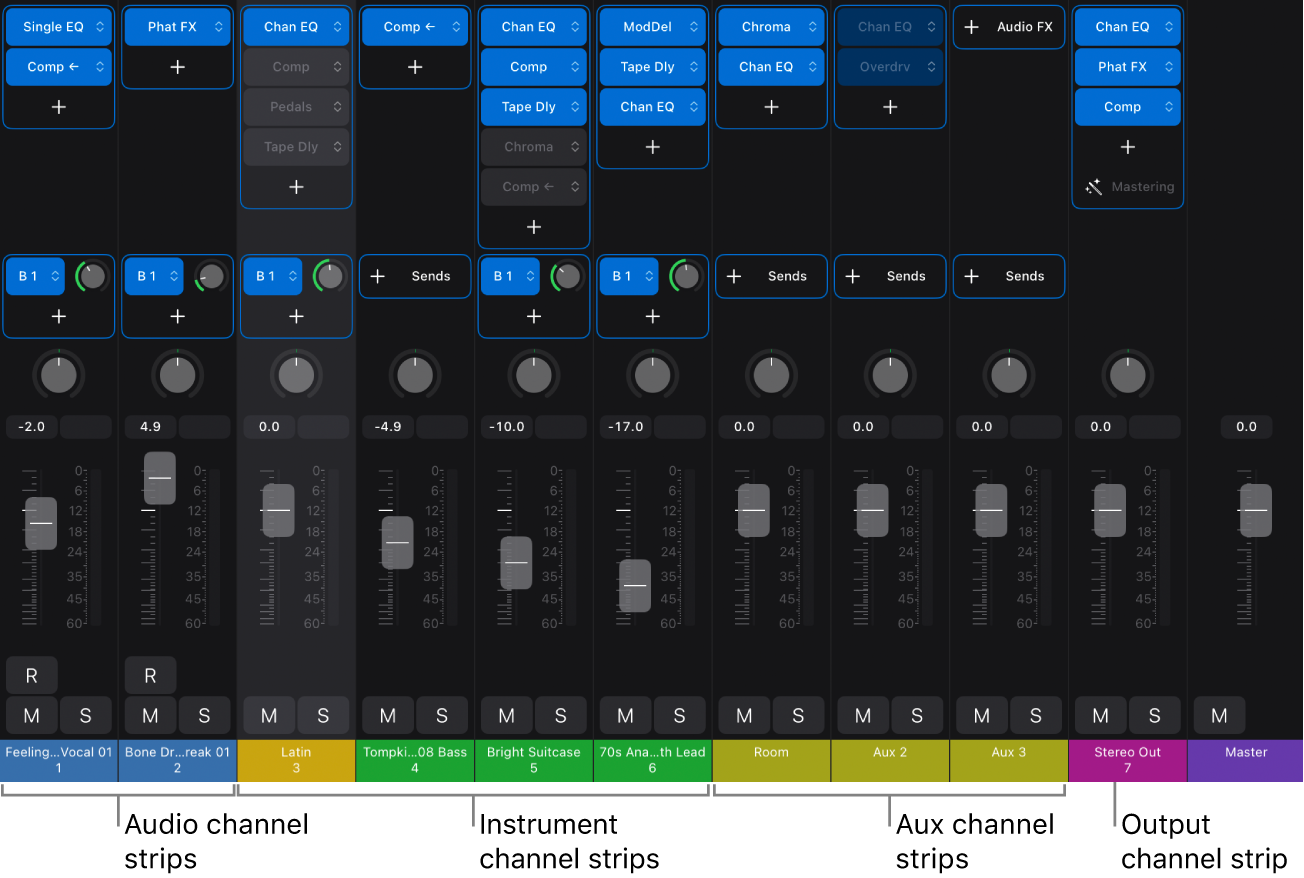
Audio channel strips: Used to control the playback and recording of audio signals on audio tracks. All data on the audio track is routed to the audio channel strip.
Instrument channel strips: Used to control software instruments. You insert a software instrument using the Instrument slot. The instrument channel strip can then produce sound from any MIDI regions on the associated track, or from notes you play on a MIDI keyboard.
Auxiliary (aux) channel strips: Used for various signal-routing purposes. Aux channel strips are used to set up send returns, where a channel strip signal is routed to an aux channel strip for effects processing. They are also used for grouping and for distributing a signal to multiple destinations via sends.
Output channel strips: Represent the physical audio outputs of your iPad and any connected audio interface. They are used to adjust the overall level and stereo balance or pan position of the channel strips routed to them. Every project has at minimum one stereo output channel strip and may have additional outputs if an audio interface is connected to your iPad.
Master channel strip: Used as a global volume control for all output channel strips. The master channel strip changes the gain of all output channel strips without affecting their relative levels.
Select channel strips
In Logic Pro, tap the color bar (showing the channel strip name and number) on the bottom of a channel strip in the Mixer.
To select multiple channel strips, tap the Multiple Select button
 in the Mixer menu bar, then tap the color bars of channel strips to select them.
Note: By default, when you select a track in the Tracks area, the Mixer autoscrolls to show the channel strip. To turn off autoscrolling, tap the More button  in the Mixer menu bar, then tap Autoscroll to Selection to deselect it.
Filter channel strips by type
In Logic Pro, tap the Filter button
 on the left side of the Mixer, then tap channel strip types to show or hide them, or tap Deselect All to hide all channel strips.
In the Utility section of the Type Filter window you can select Click and Preview to show these two channel strips, which are normally hidden. To show the Click channel strip, Software Instrument must also be selected. To show the Preview channel strip, Audio must also be selected.
When all channel strip types are deselected, you can also tap Select All to select all types.
Note: When the level meter bridge is hidden, tap the More button
in the Mixer menu bar, tap Type Filter, then tap channel strip types to show or hide them.
Rename channel strips
Tap the channel strip name (at the bottom of the channel strip) to select it.
Tap the channel strip name again, then tap Rename.
Enter a new name for the channel strip.
To rename the previous channel strip, tap the Left button above the onscreen keyboard (if you are using a computer keyboard, they appear in the middle of the view control bar).
To rename the next channel strip, tap the Right button above the onscreen keyboard (if you are using a computer keyboard, they appear in the middle of the view control bar).
Tap anywhere outside the channel strip to exit the Rename field.
Tip: When renaming channel strips using the onscreen keyboard, you can also tap the Tab key to move to the next channel strip.
Note: When you rename a track, the corresponding channel strip is also renamed, and vice versa.
You can select and rename multiple channel strips. If you rename the channel strips with a name ending in a number (for example, Channel 01), they are numbered sequentially starting from that number (Channel 01, Channel 02, Channel 03, and so on).
Delete channel strips
When you delete a track in the Tracks area associated with a channel strip, the corresponding channel strip is also deleted in the Mixer. See Delete tracks.
Download this guide: PDF