Tape Delay in Logic Pro for iPad
Tape Delay simulates the sound of vintage tape echo machines. It can run at a free rate or can be synchronized with the project tempo. The effect is equipped with a highpass and lowpass filter in the feedback loop, making it easy to create authentic dub echo effects. Tape Delay also includes an LFO for delay time modulation. This can be used to produce chorus effects, even on long delays.
To add Tape Delay to your project, choose Delay > Tape Delay in the Plug-ins area or a channel strip Audio Effect plug-in menu. See Intro to plug-ins. Also see Add, replace, reorder, and remove plug-ins in the Plug-ins area and Work with plug-ins in the Mixer.
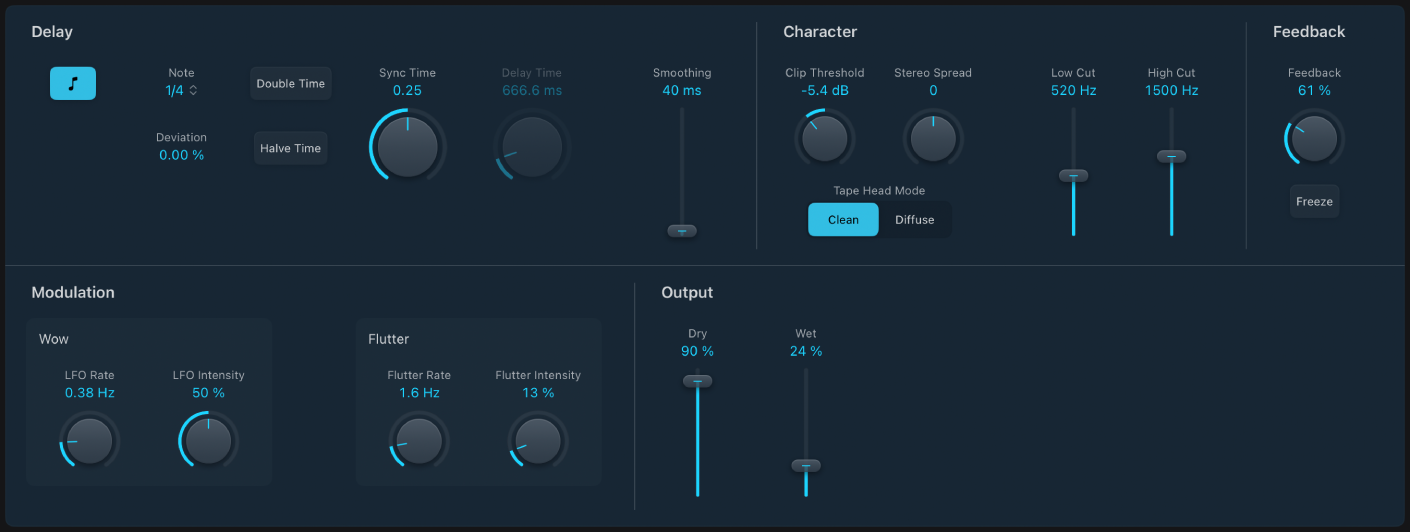
Delay parameters
Sync button: Synchronize delay repeats with the project tempo (including tempo changes). The current tempo is shown in the field below the button. Set note values with the Note pop-up menu or Delay Time knob.
 Note pop-up menu and field: Set the grid resolution for the delay time.
Deviation field: Set the amount of deviation from the project timing grid.
Double and Halve Time buttons: Double or halve the current delay time.
Sync or Delay Time knob and field: Set the delay time in milliseconds or in note values when the Sync button is turned on. Note (including dotted note) values are displayed in the Note pop-up menu field when synchronized with the project tempo.
Note: Choosing note or dotted note values resets the Deviation parameter value. Choose a value from the Note pop-up menu to retain the current Deviation value.
Smoothing slider and field: Even out the LFO and flutter effect. See LFO and Flutter parameters.
Character parameters
Clip Threshold knob and field: Set the level of the distorted tape saturation signal. Higher values produce no additional audible distortion. Lower values result in an aggressive distortion. This behavior is influenced by high Feedback values which result in eventual distortion, irrespective of the Clip Threshold value. You can achieve more aggressive distortion and signal breakup when you combine high Feedback and low Clip Threshold values.
Stereo Spread knob and field: Set the width of the effect signal in stereo instances. This parameter is not available in mono instances.
Tape Head Mode buttons: Choose Clean or Diffuse mode to emulate a different tape head position. This affects the behavior of other parameters, such as Flutter and Feedback.
Low/High Cut sliders and fields: You can cut frequencies below the Low Cut value and above the High Cut value to shape the sound of delay repeats. The highpass and lowpass filters are located in the feedback circuit, which means that the filtering effect increases in intensity with each delay repeat. If you want an increasingly muddy and confused tone, drag the High Cut slider upward. For ever thinner echoes, drag the Low Cut slider upward. If you can’t hear the effect, check the Dry and Wet controls and the filter settings.
Feedback, Modulation, and Output parameters
The Wow and Flutter controls in the Modulation section simulate the speed irregularities of tape transports used in analog tape delay units.
- Feedback knob and field: Set the amount of delayed and filtered signal that is routed back to the input. Set to the lowest possible value to generate a single echo. Set to 100% to endlessly repeat the signal. The levels of the original signal and echo repeats tend to accumulate and may cause distortion. Use the Clip Threshold, Spread, Head Mode, and filter parameters to change the color of these overdriven signals.
Freeze button: Capture current delay repeats and sustain them until the button is turned off.
Wow LFO Rate knob and field: Set the speed of the LFO for the tape wow effect.
Wow LFO Intensity knob and field: Set the amount of LFO modulation. A value of 0% turns off tape wow modulation.
Flutter Rate knob: Set the speed variation of the tape flutter effect.
Flutter Intensity knob: Set the intensity of the tape flutter effect.
- Dry/Wet controls and fields: Independently control the amount of original and effect signal.
Download this guide: PDF