
Euphony Blocks Pro is a premium WordPress block theme designed for musicians, bands, DJs, and the music industry. It combines the minimalistic and elegant design of the original Euphony Pro with modern block-based functionality. Featuring seamless integration with WooCommerce, this theme offers a visually striking and powerful platform for building your online presence. With over 70+ block patterns, 30 templates, and 12 template parts, Euphony Blocks Pro makes website creation effortless through intuitive drag-and-drop functionality—no coding required. Key patterns include Contact, CTA, Events, Featured Content, Featured Slider, Featured Videos, Footer, Gallery, Header Media, Hero Content, Logo, Music on Apps, Music Playlist, Portfolio, Services, Stats, Team, Testimonials, WooCommerce Features, and more. The theme also features a dark, captivating design that sets your site apart. Euphony Blocks Pro is optimized for SEO and fully responsive, ensuring your site performs well on any device. It includes integrated media support, customizable color schemes, social media integration, and easy eCommerce setup for selling merchandise or promoting your music. Whether you are building a website for music promotion, fan engagement, or online sales, Euphony Blocks Pro offers the perfect blend of design, functionality, and performance.


Features
Responsive Design
One of the key features of our themes is that your website will magically respond and adapt to different screen sizes delivering an optimized design for iPhones, iPads, and other mobile devices. No longer will you need to zoom and scroll around when browsing on your mobile phone.
Webmaster Tools
Webmaster Tools option helps you to minutely manage your site. Firstly, it helps to verify the site in Google, Yahoo and Bing. Additionally, whether it is something like site optimization, keeping track of your site traffic or overseeing and altering your display settings, you can call the shots for you site through Webmaster tools. These tools also allow you to add to your site Header and Footer Scripts like Google Analytics, Site Stats, Facebook, twitter and much more.
Incredible Support
We have a great line of support team and support documentation. You do not need to worry about how to use the themes we provide, just refer to our Tech Support segment. Further, if you need to do advanced customization to your website, you can always hire our theme customizer!
Featured Image Slider
Featured Image Slider allows you to not only add images, but also write a description for them. If a descriptive caption would not suffice, you also have the option of providing a clickable link. This way, as per your unique needs, should you require, you can easily add a URL to your content.
Featured Content
Featured Content allows you to highlight your recent & popular posts on your website. It can either be displayed on Homepage or the entire site. You can add your title and sub-title for featured content, select the number of featured content, display Meta, select multiple categories, and enjoy displaying your featured & recent posts.
Services
Every website owner wants the world to know about the services they provide. It allows you to place the services you provide for your customers on the spotlight. Choose to display the services in 2 to 4 columns. Display your services on the homepage only or on the entire website.
Custom Fonts
You can choose different types of stylish and engaging fonts for your Site Title, Tagline, Headline Tags, Content Title, and Content Body. Choose the font that suits best for your website from the font family options and makes your website more striking.
Hero Content
You can now display the best assets of your website with the Hero Content feature. The feature allows you to highlight the most important content in a fashion that is easily attention-grabbing. You can enable the hero content either on Homepage or the entire site. Hero Content - the easiest way to display your strengths.
WordPress Standard Codes
Our code is secure and optimized. We do proper data validation and sanitization and follow core theme guidelines. Our developers are active contributors to WordPress theme review and WordPress core. Our themes will always be updated as things change in WordPress.
Testimonials
People are always curious about what your goods and services are really like. Since customer testimonials are candid and not by the company promoting the product, they assist in building trust. You can display testimonials on Homepage, the entire site or disable it completely.
Portfolio
Portfolio empowers you to showcase your professional skills and accomplishments to the world at large. Display your Portfolio in an elegant manner on the Homepage/Frontpage, the entire site or you can also disable it completely if you don’t need it. An astounding way to easily display your experience, skills, talent, and expertise.
Sections Sorter
Sections Sorter allows you to organize various sections on your website by manually sorting them. Simply drag and drop the sections to your desired position and display them orderly.The cool feature in this option is that you can not only rearrange the order but also can quickly edit those sections from Sections Sorter option if you want any changes.
Footer Editor
Footer Editor Options enables you to edit the content of the footer easily. You can either add HTML, plain text, or custom shortcodes which will be inserted into your theme automatically. You can use shortcodes like [the-year], [site-link] and [privacy-policy-link] for the current year, site link and privacy policy link respectively.
Full Site Editing
Customize your whole website design directly from the Front-End and build something magical. Change your site layout and add blocks/patterns directly on the site whilst working on the page content. Super easy to create dynamic content!
Custom Blocks
Enhance the pages of your website with the blocks. Generally, these custom blocks are more dynamic and have amazing designs. Create a page independently.
Multiple Block Patterns
Comes with a collection of predefined block design layouts, available from the patterns tab of the block inserter. Create an elegant layout that combines different blocks. Build Gracefully!
FSE Pro Plugin
This theme comes with the FSE Pro plugin as a bundle. FSE Pro is a Premium Full Site Editing WordPress Plugin that extends Gutenberg Blocks and Patterns to give your website a unique look and feel. This premium plugin provides you with more control over your site blocks and patterns to build your site with the premium design and creation tools.
More Features
- Responsive Design
- Alternative Styles
- Page Templates
- Color Options
- Featured Thumbnail
- Threaded Comments
- Dropdown Menu
- Gravatar Ready
- Localized for translations
- Custom Header / Logo
- Custom Menu
- Custom Footer
- Custom Background
- Custom Layout
- Custom Fonts
- Custom Homepage
- Custom CSS
- Support
- WooCommerce Ready
- WPML Ready
- Header Highlight Content
- Hero Content
- Portfolio
- Logo Slider
- News
- Events
- Testimonials
- Services
- Header Video
- Clean Header
- Full HD Screens
- Featured Content
- WordPress Standard Codes
- Promotion Headline
- Sections Sorter
- Teams
- Products
- Full Site Editing
- Block Based Theme
- Site Editor
- Patterns
- Blocks
- Template Editing
- Global Styles
Free Vs Pro (Premium)
| Free | Features | Pro (Premium) |
|---|---|---|
| Responsive Design | ||
| Super Easy Setup | ||
| Browse Style and Demo: Light | ||
| Color Options | ||
| Case Study (Block) | ||
| Skills Bar (Block) | ||
| Masonry (Block) | ||
| Popup Video (Block) | ||
| Header Search (Block) | ||
| Header Social (Block) | ||
| Icons (Block) | ||
| Date (Block) | ||
| Slider (Block) | ||
| Tabs (Block) | ||
| Accordion (Block) | ||
| Countdown (Block) | ||
| Playlist (Block) | ||
| 404 Header | ||
| Archive Header | ||
| Blog Header | ||
| Cart Header | ||
| Checkout Header | ||
| Contact | ||
| CTA | ||
| Events | ||
| Featured Content Default | ||
| Featured Content Two | ||
| Featured Content | ||
| Featured Slider | ||
| Featured Videos | ||
| Footer Default | ||
| Footer Four Columns | ||
| Footer Three Columns | ||
| Footer | ||
| Gallery | ||
| Header Media | ||
| Header Normal | ||
| Header With Banner | ||
| Header | ||
| Hero Content With Accordion | ||
| Hero Content | ||
| Hidden 404 | ||
| Hidden Archive | ||
| Hidden blog | ||
| Hidden Post | ||
| Hidden Search | ||
| How it Works | ||
| Logo | ||
| Music On Apps | ||
| Music Playlist | ||
| Portfolio Cover | ||
| Portfolio With Category Cover | ||
| Portfolio With Category | ||
| Portfolio | ||
| Post Header | ||
| Product Category | ||
| Product Reviews | ||
| On Sale Products | ||
| Recent Products | ||
| Top Rated Products | ||
| Best Selling Products | ||
| Promotional Contact | ||
| Promotional Video | ||
| Quick Contact Form | ||
| Quick Contact | ||
| Recent Blog POsts | ||
| Search Header | ||
| Services Default | ||
| Services Two | ||
| Services | ||
| Shop Header | ||
| Sidebar Products | ||
| Sidebar | ||
| Stats Default | ||
| Stats Two | ||
| Stats With Background Image | ||
| Stats | ||
| Sticky Playlist | ||
| Subscribe | ||
| Team Default | ||
| Team Two | ||
| Team | ||
| Testimonial Default | ||
| Testimonials Three Columns | ||
| Testimonials | ||
| WooCommerce Features | ||
| Template: Archive Product Full Width | ||
| Template: Archive Product Sidebar on Left | ||
| Template: Archive Product Sidebar on Right | ||
| Template: Blog No Sidebar Full Width | ||
| Template: Blog No Sidebar | ||
| Template: Blog Sidebar on Left | ||
| Template: Blog Sidebar on Right | ||
| Template: Single Page No Sidebar Full Width | ||
| Template: Single Page Sidebar On Left | ||
| Template: Single Page No Sidebar | ||
| Template: Single Post No Sidebar Full Width | ||
| Template: Single Post Sidebar On Left | ||
| Template: Single Post No Sidebar | ||
| Parts: Footer Default | ||
| Parts: Footer Four Columns | ||
| Parts: Footer Three Columns | ||
| Parts: Footer | ||
| Parts: Header Normal | ||
| Parts: Header With Banner | ||
| Parts: Header |
Theme Instructions
How to install theme?
Go to this link
How to update theme to the latest version?
Go to this link
Frequently Asked Question
Before starting please visit our Frequently Asked Question link, to know more about Full Site Editing Themes
Installing Required Plugin for Euphony Blocks Pro
Euphony Blocks Pro comes with our Premium Plugin FSE Pro. After you purchase Euphony Blocks Pro the plugin comes bundled with theme. As most of the blocks and patterns are inherited with the pro plugin we have bundled the theme and plugin together. You can install and activate it with clicking few buttons
1. After installation of theme, go to WordPress Dashboard, there you will find notice “This theme requires the following plugin: FSE Pro”, click on “Begin Install Button” as shown in the picture below:

2. Then Click on “Install” button
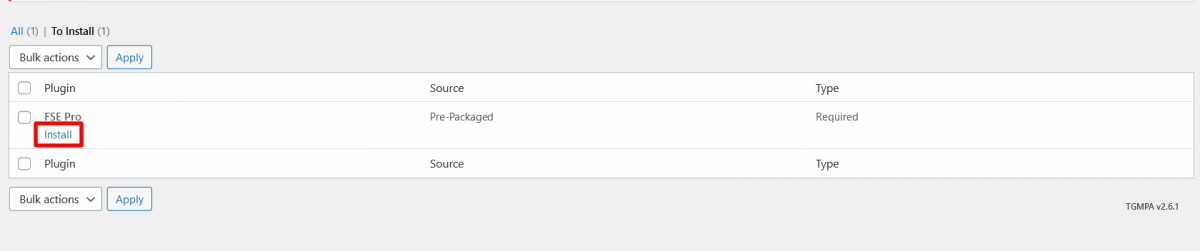
3. After Installation of FSE PRO Plugin click on “Return to Dashboard Button” to enter license key
4. Get your product license key from the My Account Page. Activating your license key is mandatory.
5. Enter plugin’s license key from Plugins -> FSE Pro plugin license and click on Activate License
Note: Please visit FAQ for FSE Pro Plugin if you have any confusion regarding plugin installation
How to Open Site Editor?
If you are on WordPress Dashboard then go to “Appearance -> Editor” to open the Site Editor.
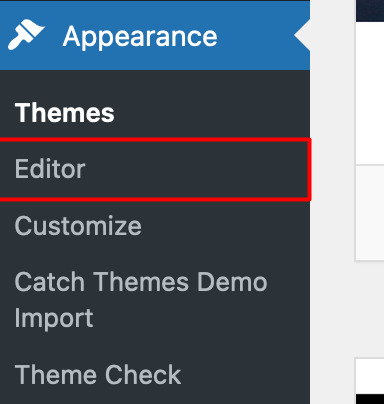
If you are on Site Front-End then you will see WP Admin Bar on the top of the page, click on “Edit Site” to open the Site Editor.

Add and Edit Menu
You can Select predefined menu and create you own customized menu.
Go to this link for Navigation Block
1. This Video show how to create your own custom menu:
2. This video shows how to select predefined menu:
Site Navigation Menu
Please visit this link for Navigation Block. You can edit existing menu or create a new one.
How to work with Euphony Blocks Pro Blocks and Patterns
After opening site editor, there are 3 ways you can add Blocks and Pattern in you website:
There are three ways to add a block using the Block Inserter (+) icon.
- Click on the Block inserter (+) icon in the top toolbar and Click on Patterns. Browse the Patterns and select the one that you like to add.
- Click on the Block inserter (+) icon to the right of an empty block, after that Click on the Browse All button, and finally Click on Patterns. Browse the Patterns and select the one that you like to add.
- Click on the Block inserter (+) icon in between blocks, after that Click on the Browse All button, and finally Click on Patterns. Browse the Patterns and select the one that you like to add.

Once the section is selected you can edit its content or if you want to customize the section’ properties/options, click the three dots and select your desired action. Duplicate, Remove, Copy or Add desired section before or after the current section.
Go to this link to know more about adding blocks and patterns
How to Edit Pattern Content?
First, click on the pattern content you wish to edit/customize
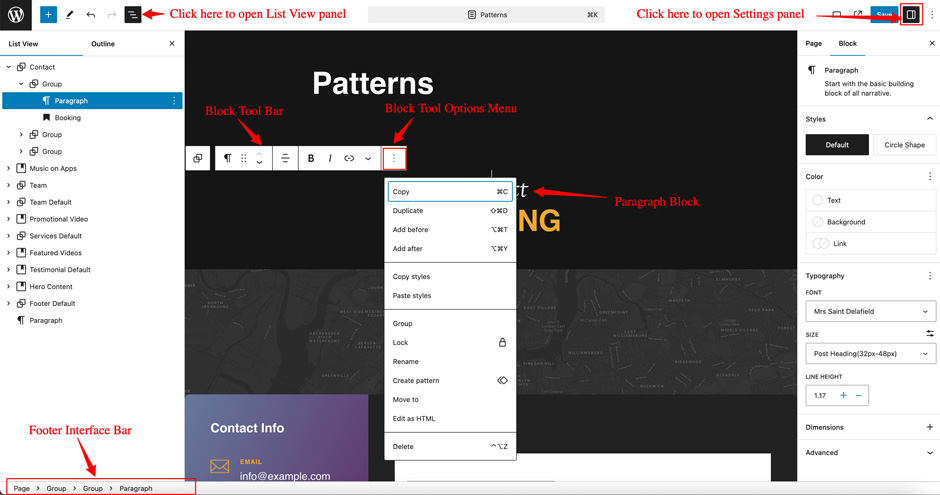
You can select the section/content in three ways
- Clicking on the section itself
- List View
- Footer Interface Bar
Once the section is selected you can edit its content or if you want to customize the section’ properties/options, click the three dots and select your desired action. Duplicate, Remove, Copy or Add desired section before or after the current section.
Patterns in Euphony Blocks Pro
Patterns in Euphony Blocks Pro are predefined list of in built sections. Patterns are built with different type of blocks.
You can easily add patterns in any part of your website. You will just have to click on ‘+’ sign on top left of your page or post, then you will see tab for “Pattern” click on that to see list of patterns. Under Scroll Down you will find “Euphony Blocks Pro” which will display list of our Euphony Blocks Pro pattern
Pattern are group of blocks. Once a pattern is added in editor, they are now individual blocks that can be moved edited or replaced. The pattern stops being pattern as soon as it placed in the editor. The content of patterns are always saved even if the users switches theme. It might look different in different themes.
There are 69 Patterns in Euphony Blocks Pro.
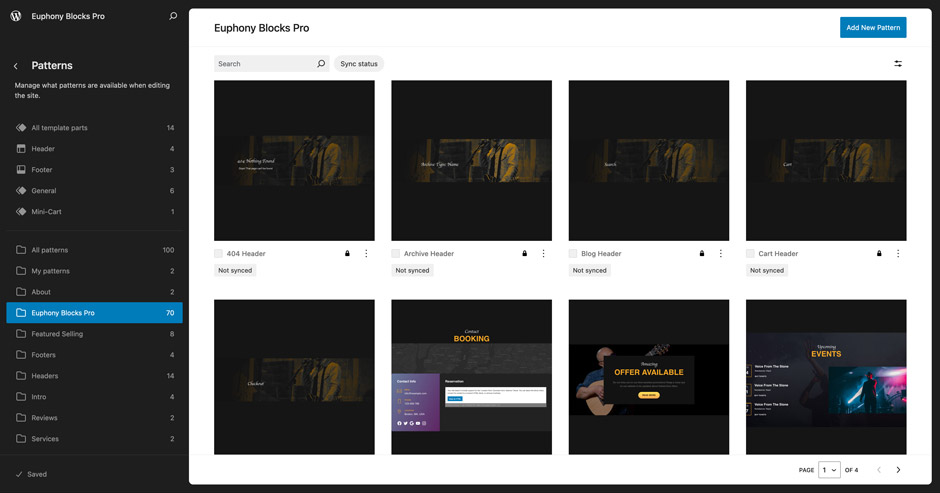
Here is the list of Patterns Euphony Blocks Pro supports including patterns from FSE Pro Plugin.
- 404 Header
- Archive Header
- Blog Header
- Cart Header
- Checkout Header
- Contact
- CTA
- Events
- Featured Content Default
- Featured Content Two
- Featured Content
- Featured Slider
- Featured Videos
- Footer Default
- Footer Four Columns
- Footer Three Columns
- Footer
- Gallery
- Header Media
- Header Normal
- Header With Banner
- Header
- Hero Content With Accordion
- Hero Content
- Hidden 404
- Hidden Archive
- Hidden Post
- Hidden Search
- How It Works
- Logo Slider
- Logo
- Music on Apps
- Music Playlist
- Order Confirmation Header
- Portfolio – Cover
- Portfolio With Category – Cover
- Portfolio With Category
- Portfolio
- Post Header
- Product Category
- Product Reviews
- On Sale Products
- Recent Products
- Top Rated Products
- Best Selling Products
- Promotional Contact
- Promotional Video
- Quick Contact Form
- Quick Contact
- Recent Blog Posts
- Search Header
- Services Default
- Services Two
- Services
- Shop Header
- Sidebar Products
- Sidebar
- Stats Default
- Stats Two
- Stats With Background Image
- Stats
- Sticky Playlist
- Subscribe
- Team Default
- Team Two
- Team
- Testimonial Default
- Testimonials Three Columns
- Testimonials
- WooCommerce Features
Header Patterns
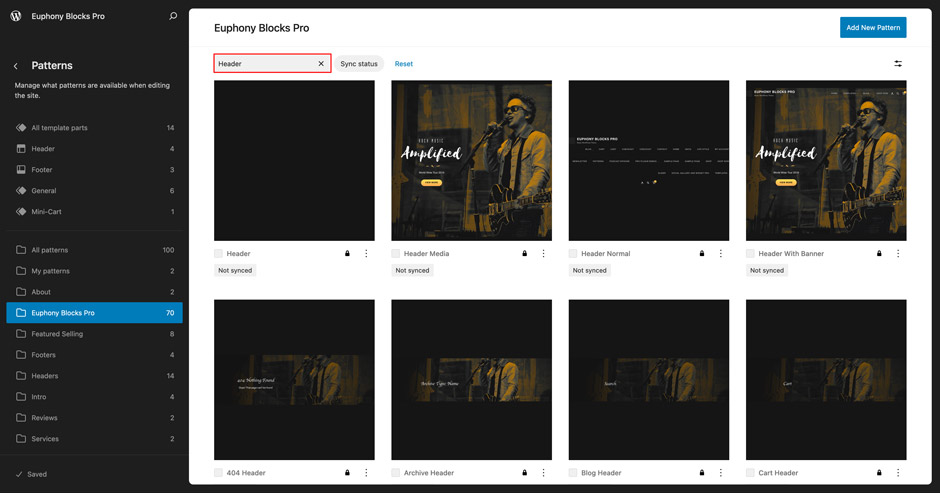
There are 14 different headers provided by Euphony Blocks Pro. Here are the list of headers. You can choose header according to your need.
- Header
- Header Media
- Header Normal
- Header With Banner
- 404 Header
- Archive Header
- Archive Header With Background
- Blog Header
- Cart Header
- Checkout Header
- Order Confirmation Header
- Post Header
- Search Header
- Shop Header
Here is how you add header to website:
- Click on “+” sign on block pattern tab to display Blocks and Pattern, Click on Pattern
- Click select “Euphony Blocks Pro” to see list of pattern provided by Euphony Blocks Pro
- Scroll down to find 10 different type of header(mentioned above) or type “Header” in Search box, click to add desired header or drag and drop
- After adding header, Click on Top left setting icon there you can edit the sections
- Edit Header Accordingly you can add, images, text, cover and so on
- Finally, click “Save” to save changes
Header Media
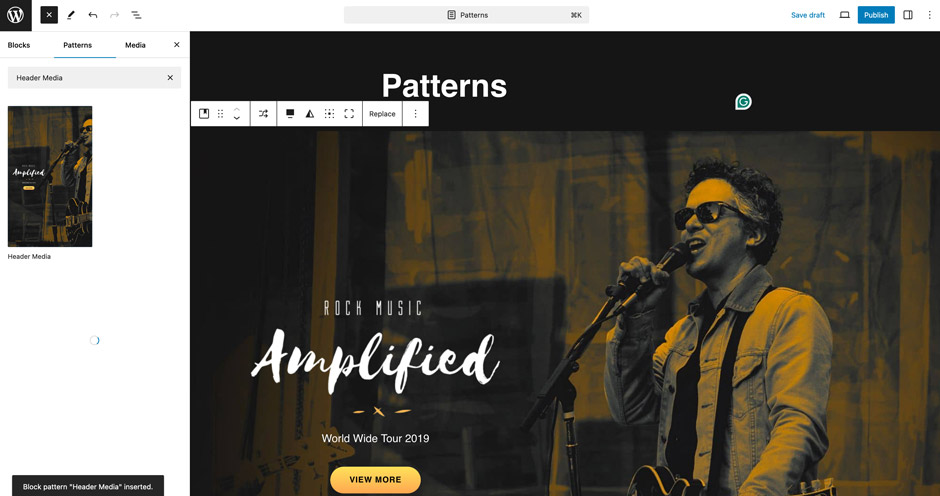
Euphony Blocks Pro supports Header Media pattern, using this pattern you can add image in your header area along with featured image, button, header media text.
Here is how you edit header media:
- Click on “+” sign on block pattern tab to display Blocks and Pattern, Click on Pattern
- Click on dropdown menu and select “Euphony Blocks Pro” to see list of pattern provided by Euphony Blocks Pro
- Scroll down to find “Header Media” or type “Header Media” in Search box
- Click to add or drag and drop in desired area
- Click on the content of header media itself to replace images, text and button. You can add and replace header media such as image, text, link as per your need
- Finally click on Save to save changes
Music Playlist
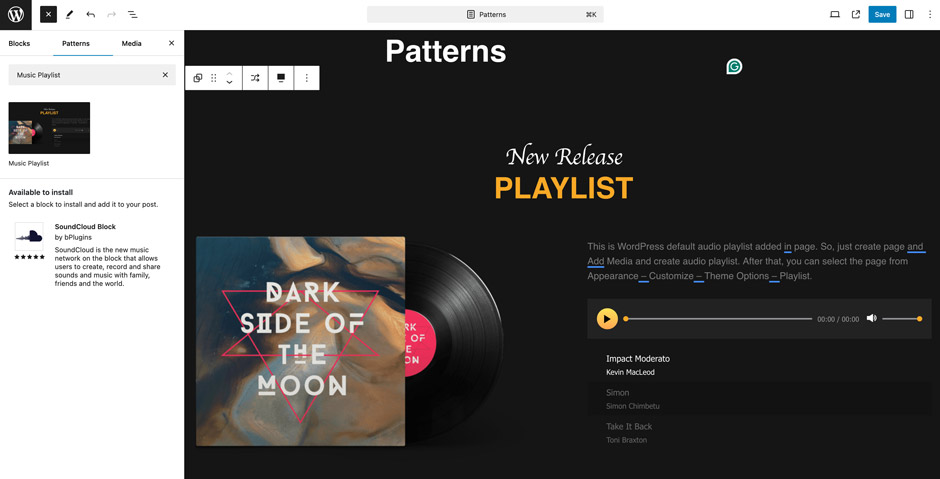
Euphony Blocks Pro supports Music Playlist pattern, this pattern allows you to display the your music playlist to your audience in the most amazing way possible. By default it will load the Playlist Cover, Title, Description and sample music. You can edit all those as per your need.
Here is how you add Music Playlist:
- Click on “+” sign on block pattern tab to display Blocks and Pattern, Click on Pattern
- Select “Euphony Blocks Pro” to see list of pattern provided by Euphony Blocks Pro
- Scroll down to find “Music Playlist” or type “Music Playlist” in Search box
- Click to add or drag and drop in desired area
- Edit Music Playlist, you can add/edit, images, text, music, button and so on
- Finally click “Save”, to save changes
Sticky Playlist
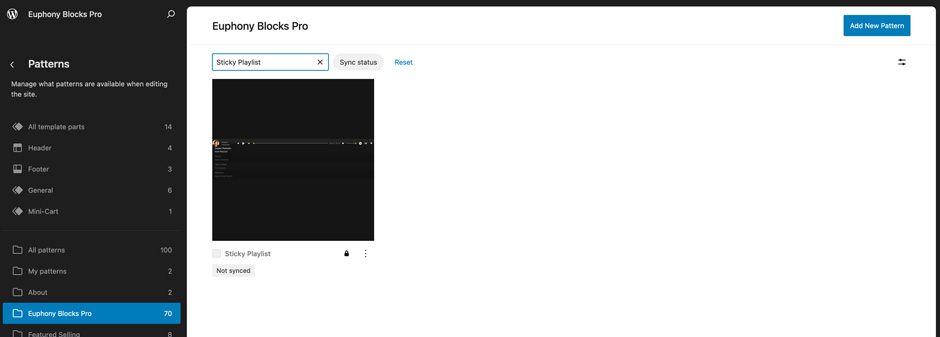
Euphony Blocks Pro supports Sticky Playlist pattern, this pattern allows you to display the your music playlist to the bottom of the page.
Here is how you add Sticky Playlist:
- Click on “+” sign on block pattern tab to display Blocks and Pattern, Click on Pattern
- Select “Euphony Blocks Pro” to see list of pattern provided by Euphony Blocks Pro
- Scroll down to find “Sticky Playlist” or type “Sticky Playlist” in Search box
- Click to add or drag and drop in desired area. It will load the default playlist
- Edit Sticky Playlist, Click on the default playlist, then you can add music using “Upload” button and manage the existing music using “Media Library” button

- Finally click “Save”, to save changes

Hero Content
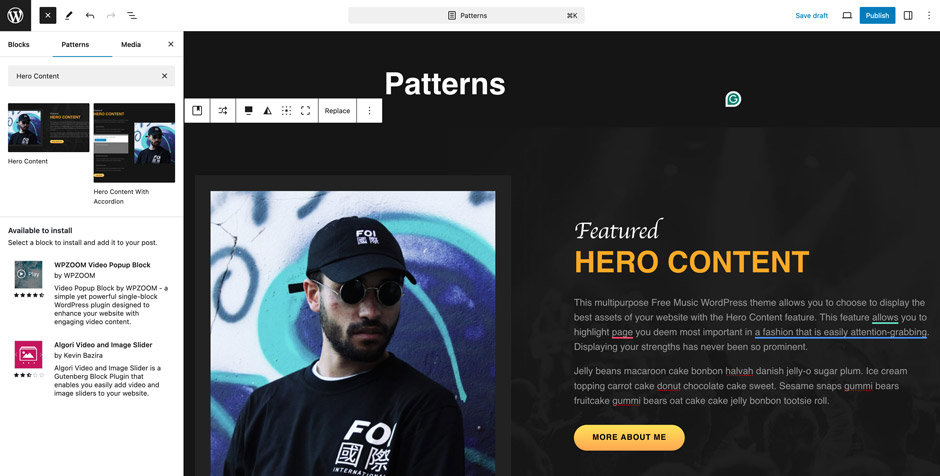
Euphony Blocks Pro supports Hero Content pattern, this pattern allows you to display the best assets of your website to your audience in the most amazing way possible. So, you can set the media and words side by side for a richer layout. Also, add the title, tagline, content, and button for the section. Display your best assets and customize them the way you want.
Here is how you add Hero Content:
- Click on “+” sign on block pattern tab to display Blocks and Pattern, Click on Pattern
- Select “Euphony Blocks Pro” to see list of pattern provided by Euphony Blocks Pro
- Scroll down to find “Hero Content” or type “Hero Content” in Search box
- Click to add or drag and drop in desired area
- After adding hero content, Click on Top left setting icon there you can customizer various section such as Media Setting, Overlay Opacity, Typography, Dimensions of your choice
- Edit Hero Content Accordingly you can add/edit, images, text, cover, button and so on
- Finally click “Save”, to save changes
Events
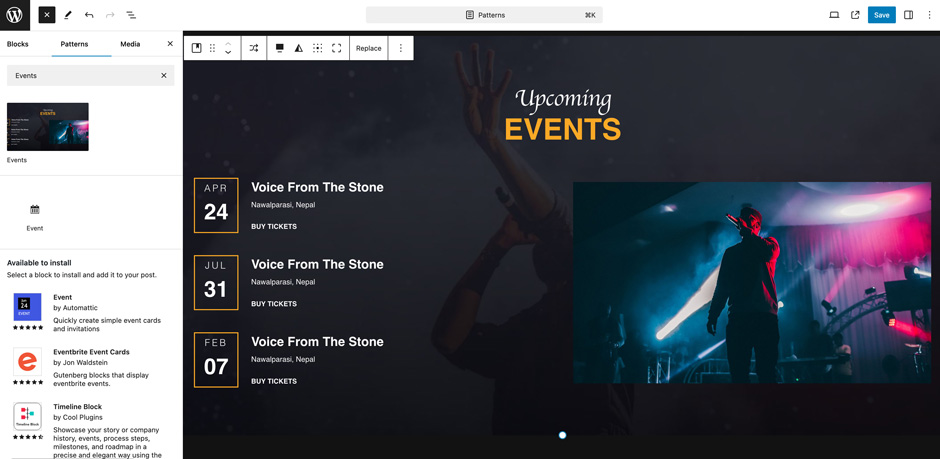
Euphony Blocks Pro supports Events pattern, this pattern allows you to display the Upcoming Events to your audience in the most amazing way possible. So, you can set the media and words side by side for a richer layout. Also, add the title, tagline, content, and button for the section. Display your best assets and customize them the way you want.
Here is how you add Events:
- Click on “+” sign on block pattern tab to display Blocks and Pattern, Click on Pattern
- Select “Euphony Blocks Pro” to see list of pattern provided by Euphony Blocks Pro
- Scroll down to find “Events” or type “Eventst” in Search box
- Click to add or drag and drop in desired area
- Edit Events accordingly. You can add/edit, images, text, cover, button and so on
- Finally click “Save”, to save changes
Gallery
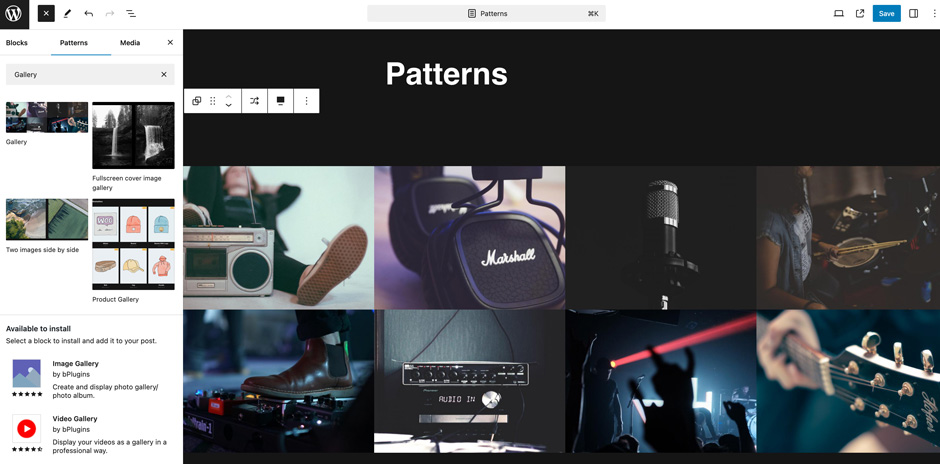
Euphony Blocks Pro supports Gallery pattern, this pattern allows you to display images to your audience in the most amazing way possible. So, you can set the media. Display your best assets and customize them the way you want.
Here is how you add Gallery:
- Click on “+” sign on block pattern tab to display Blocks and Pattern, Click on Pattern
- Select “Euphony Blocks Pro” to see list of pattern provided by Euphony Blocks Pro
- Scroll down to find “Gallery” or type “Gallery” in Search box
- Click to add or drag and drop in desired area
- Edit Gallery accordingly. You can add/edit images and links
- Finally click “Save”, to save changes
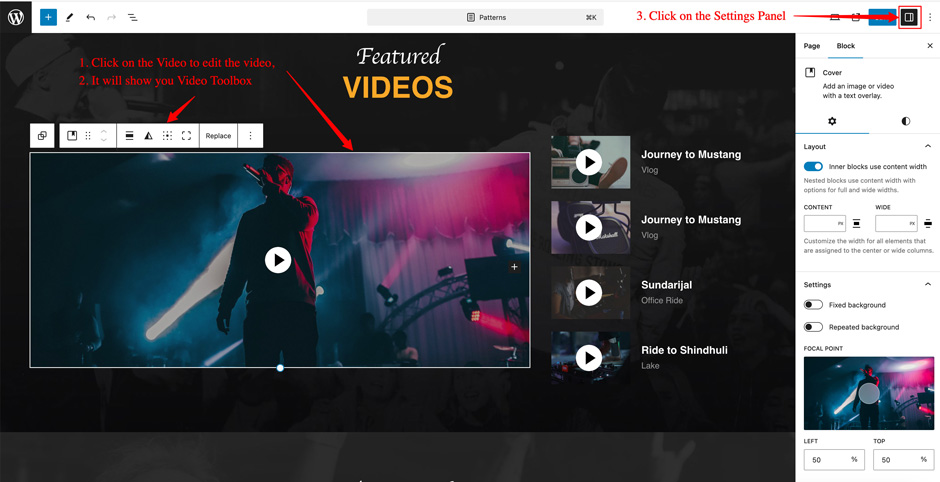
Featured Videos
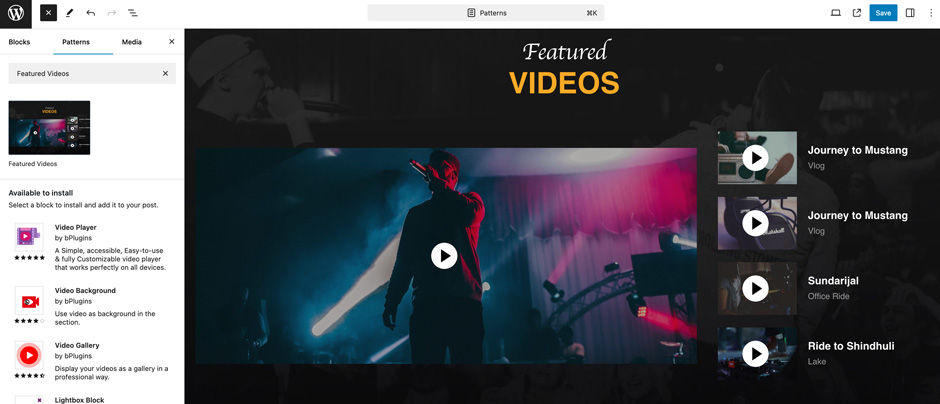
Euphony Blocks Pro supports Featured Videos pattern, this pattern allows you to display the your video to your audience in the most amazing way possible. By default it will load the default video. You can edit all those as per your need.
Here is how you add Featured Videos:
- Click on “+” sign on block pattern tab to display Blocks and Pattern, Click on Pattern
- Select “Euphony Blocks Pro” to see list of pattern provided by Euphony Blocks Pro
- Scroll down to find “Featured Videos” or type “Featured Videos” in Search box
- Click to add or drag and drop in desired area
- Edit Featured Videos, you can add/edit, Video, text, and so on

- Finally click “Save”, to save changes
Services
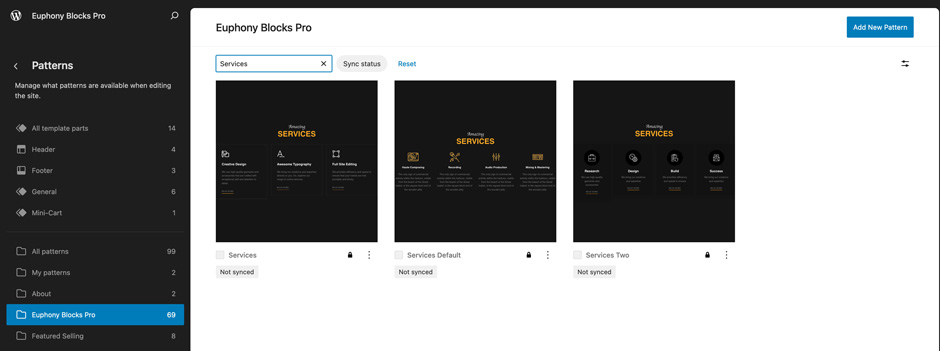
Services allows you to display your services. Euphony Blocks Pro supports 3 Services patterns.
- Services Default
- Services Two
- Services
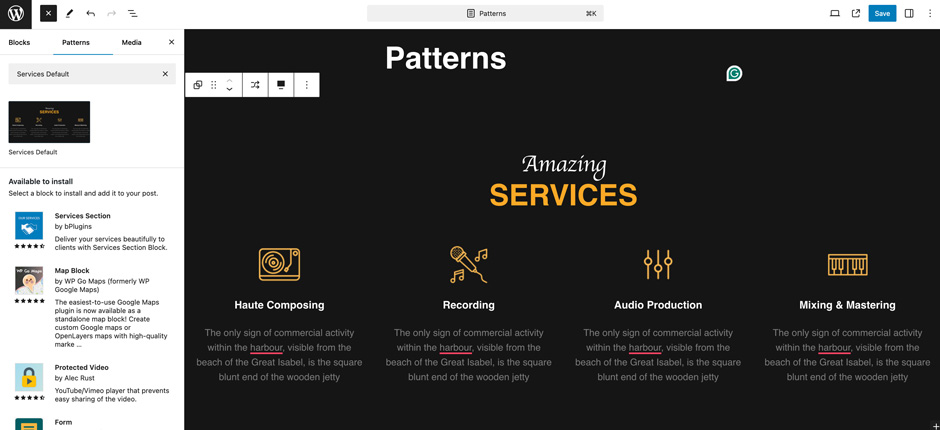
Here is how you add Services Default:
- Click on “+” sign on block pattern tab to display Blocks and Pattern, Click on Pattern
- Select “Euphony Blocks Pro” to see list of pattern provided by Euphony Blocks Pro
- Scroll down to find “Services Default” or type “Services Default” in Search box
- Click to add or drag and drop in desired area

- Edit Services Accordingly you can add/edit, images, text, links, and so on
- Finally click “Save”, to save changes
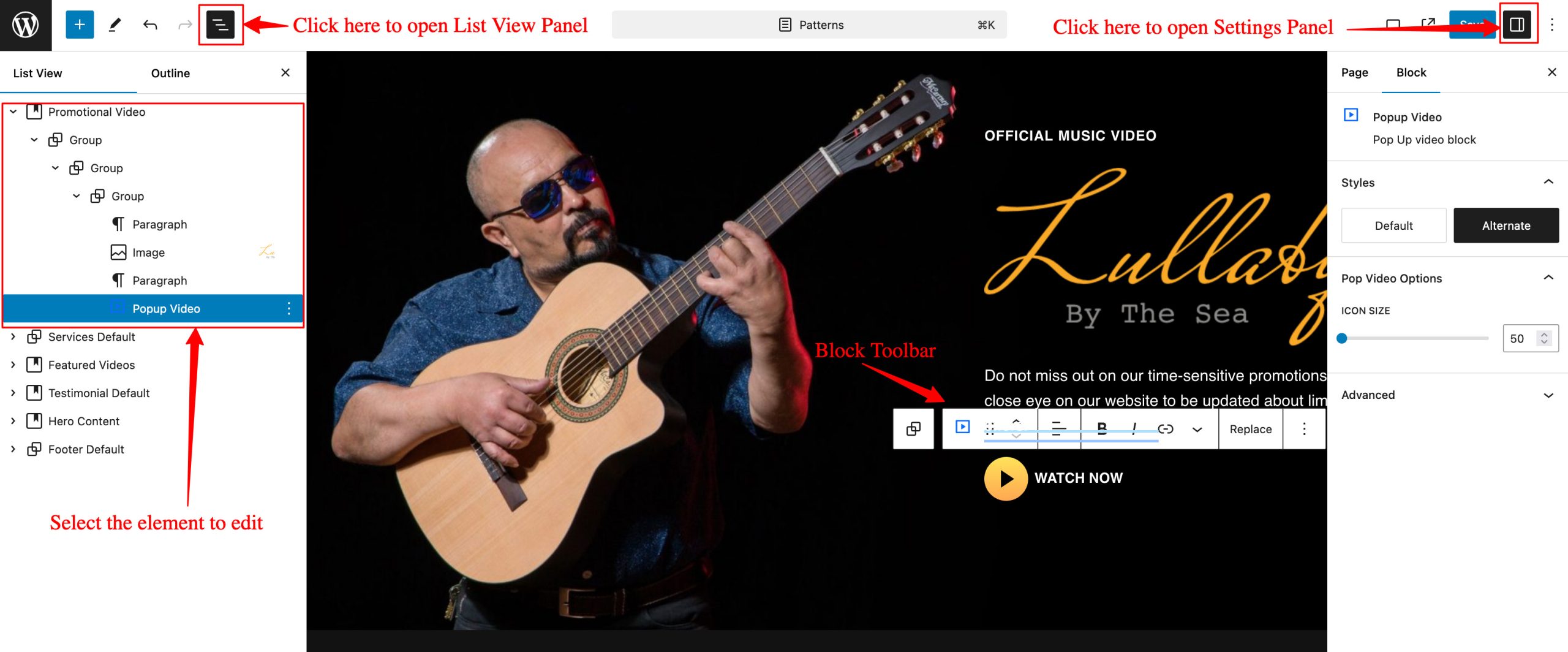
Promotional Videos
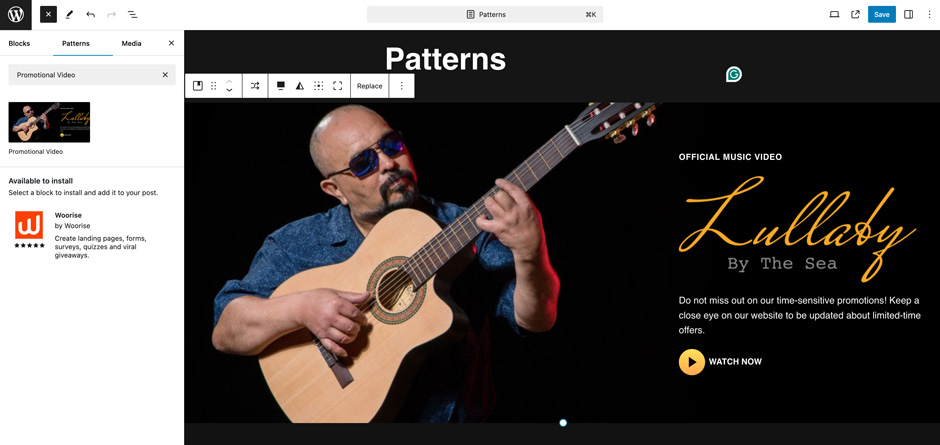
Euphony Blocks Pro supports Promotional Videos pattern, this pattern allows you to display the your promotional video to your audience in the most amazing way possible. By default it will load the cover image, paragraph text, image and Popup video. You can edit all those as per your need.
Here is how you add Promotional Videos:
- Click on “+” sign on block pattern tab to display Blocks and Pattern, Click on Pattern
- Select “Euphony Blocks Pro” to see list of pattern provided by Euphony Blocks Pro
- Scroll down to find “Featured Videos” or type “Featured Videos” in Search box
- Click to add or drag and drop in desired area
- Edit Promotional Videos, you can add/edit, Cover Image, Text, Image, Popup Video and so on

- Finally click “Save”, to save changes
Team (Band Members)
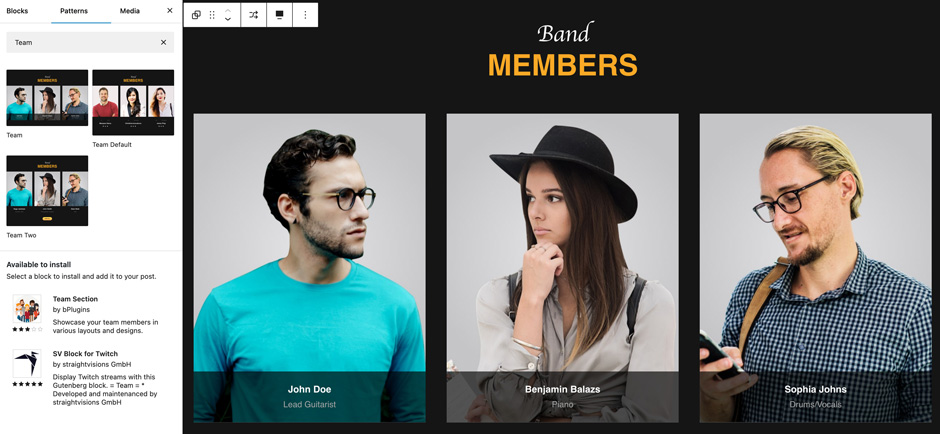
Euphony Blocks Pro supports Team pattern, this pattern allows you to display the your team / band members to your audience in the most amazing way possible.
- Team
- Team Two
- Team Default
Here is how you add Team:
- Click on “+” sign on block pattern tab to display Blocks and Pattern, Click on Pattern
- Select “Euphony Blocks Pro” to see list of pattern provided by Euphony Blocks Pro
- Scroll down to find “Team” or type “Team” in Search box
- Click to add or drag and drop in desired area
- Edit Team Accordingly you can add/edit, images, text, link, and so on
- Finally click “Save”, to save changes
Portfolio
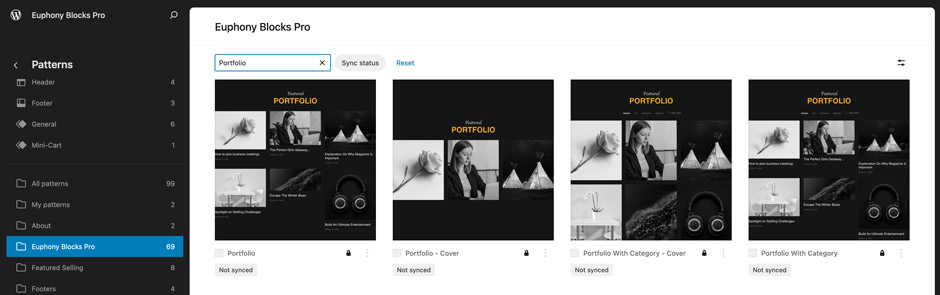
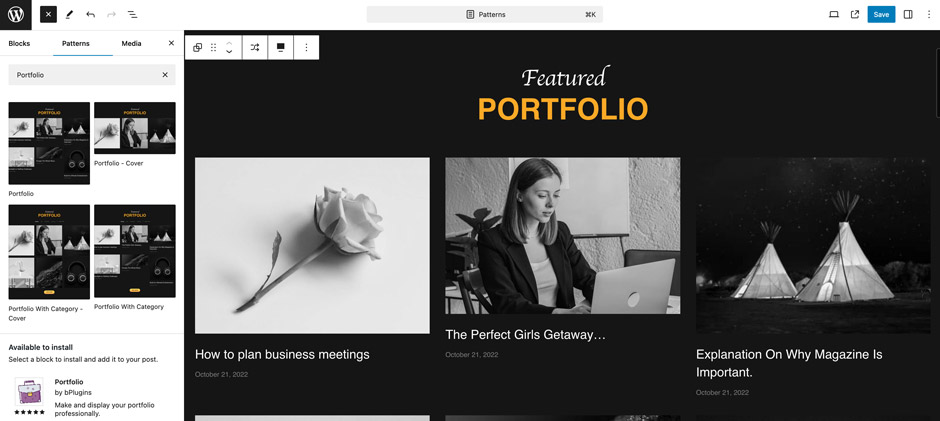
Portfolio Patterns allows you to display your Portfolio. Euphony Blocks Pro supports 4 Portfolio patterns.
- Portfolio
- Portfolio – Cover
- Portfolio With Category
- Portfolio With Category – Cover
- Click on “+” sign on block pattern tab to display Blocks and Pattern, Click on Pattern
- Select “Euphony Blocks Pro” to see list of pattern provided by Euphony Blocks Pro
- Scroll down to find “Portfolio” or type “Portfolio” in Search box
- Click to add or drag and drop in desired area

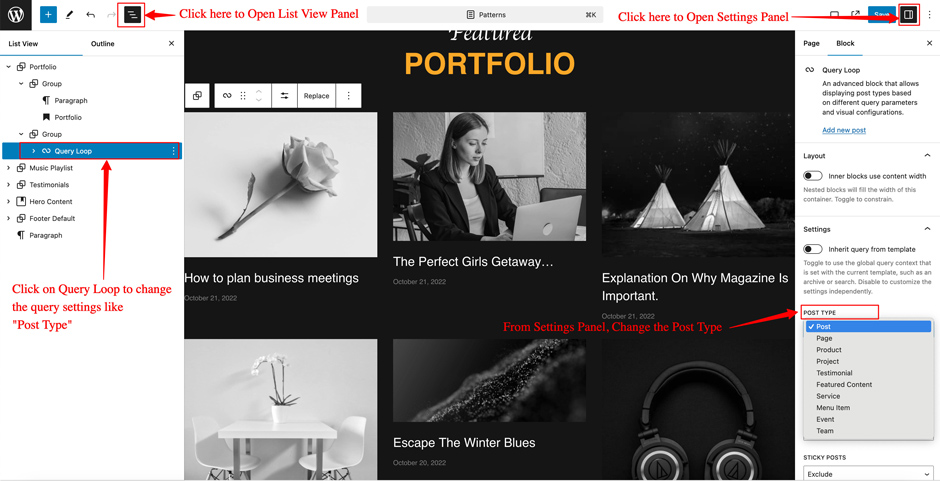
- By Default, it will load Portfolio Title and Recent Posts, then you can edit those as per your need
- But if you want to change the Portfolio Type, then Click on “Query Loop” and from the Settings panel, change the “Post Type”.

- Finally click “Save”, to save changes
- Testimonial Default
- Testimonials Three Columns
- Testimonials
- Click on “+” sign on block pattern tab to display Blocks and Pattern, Click on Pattern
- Select “Euphony Blocks Pro” to see list of pattern provided by Euphony Blocks Pro
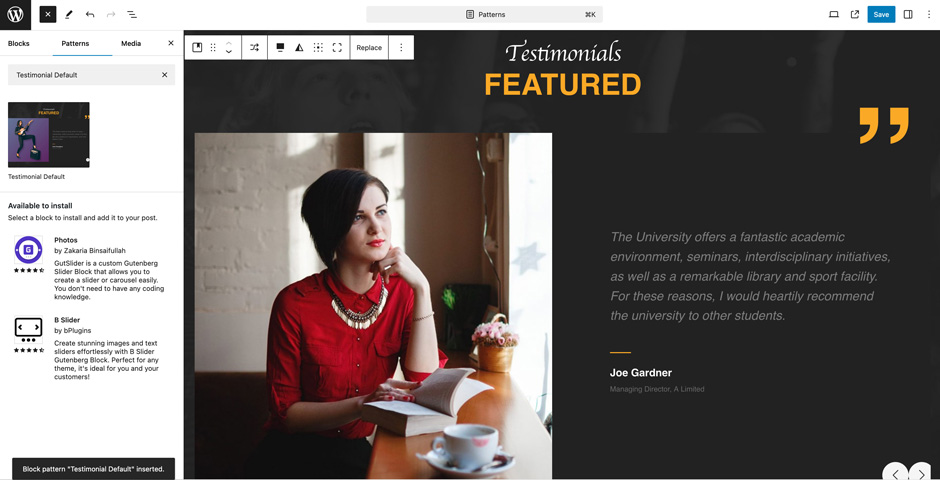
- Scroll down to find “Testimonial Default” or type “Testimonial Default” in Search box
- Click to add or drag and drop in desired area

- Edit Testimonial Accordingly you can add/edit, images, text, cover, and so on
- Finally click “Save”, to save changes
- Click on “+” sign on block pattern tab to display Blocks and Pattern, Click on Pattern
- Select “Euphony Blocks Pro” to see list of pattern provided by Euphony Blocks Pro
- Scroll down to find “Music on Apps” or type “Music on Apps” in Search box
- Click to add or drag and drop in desired area
- Edit Music on Apps accordingly. You can add/edit Cover Images, Image, Text, Apps image and links
- Finally click “Save”, to save changes
- Footer
- Footer Default
- Footer Four Columns
- Footer Three Columns
- Click on “+” sign on the top bar to display Blocks and Pattern, Click on Pattern
- Select “Euphony Blocks Pro” to see list of pattern provided by Euphony Blocks Pro
- Scroll down and to find “Footer Default” or type “Footer ” in Search box
- Click to add or drag and drop in desired area
- Edit Footer accordingly by changing text, social links, add recent posts
- Finally click Save, to save changes
- Click on “+” sign on the top bar to display Blocks and Pattern, Click on Pattern
- Click on dropdown menu and select “Euphony Blocks Pro” to see list of pattern provided by Euphony Blocks Pro
- Scroll down and to find “Logo” or type “Logo” in Search box
- Click to add or drag and drop in desired area
- Replace Logo by clicking on the Logo content itself, change logos as per your requirement
- For advance setting click on the setting icon on the top right of the page to edit style, image dimensions, border
- Finally click Save, to save changes
- Product Category
- Product Review
- Best Selling Products
- On Sale Products
- Recent Products
- Top Rated Products
- Sidebar Products
- Cart Header
- Checkout Header
- WooCommerce Features
- Add the desired pattern, then click on the section you want to duplicate
- Click on the section you want to duplicate, after clicking tool bar will open and click the three buttons
- After clicking on the three dots menu on the tool bar, click on the “Duplicate” option to replicate your desired section or design
- Edit the section accordingly
- Click on “Save” button to save your changes
- Add the desired pattern, then click on the section you want to duplicate
- Open the “List View” tab from top tool bar, to open the table of content
- Scroll down to the section that you want to duplicate
- Click on three dots menu and select “Duplicate” option to replicate your desired section or design
- Edit the section accordingly
- Click on “Save” button to save your changes
- All Archives
- Archive Product
- Archive Product (Full Width)
- Archive Product (Sidebar on Left)
- Archive Product (Sidebar on Right)
- Blank
- Blog Home
- Blog Page (No Sidebar Full Width)
- Blog Page (No Sidebar)
- Blog Page (Sidebar on Left)
- Blog Page (Sidebar on Right)
- Checkout
- Front Page
- Index
- Order Confirmation
- Page: 404
- Pages
- Product Search Results
- Products By Attribute
- Products By Category
- Products By Tag
- Search Results
- Single Page (No Sidebar Full Width)
- Single Page (No Sidebar)
- Single Page (Sidebar on Left)
- Single Post (No Sidebar Full Width)
- Single Post (No Sidebar)
- Single Post (Sidebar on Left)
- Single Posts
- Single Product
- From your WordPress Dashboard, go to “Appearance => Editor”
- Click on “Templates => Euphony Blocks Pro”, it will load all Templates

- Now, you can use the Search Bar to search for any above mentioned template or just scroll to view existing template
- After searching the template, click on it to load that template on Editor. Template consist of Template Part, Patterns and Blocks
- If you want to see the List of Template Part, Patterns and Blocks used in the template, then click on “List View” panel. From this, you can click on the Element that you want to edit
- Now, you can edit the desire elements and after all the changes click on “Save” button
- From your WordPress Dashboard, go to “Appearance => Editor”
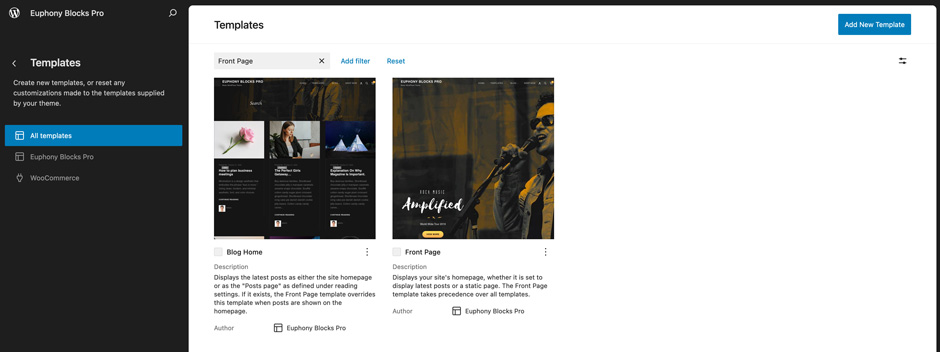
- Click on “Templates”, it will load all Templates, then in Search Box type “Front Page”

- Click on “Front Page” template and will load the Front Page template
- If you want to see the List of Template Part, Patterns and Blocks used in the template, then click on “List View” panel. From this, you can click on the Element that you want to edit
- If you want to see the Settings of each blocks then you can click on “Settings” panel
- Now, you can edit the desire elements and after all the changes click on “Save” button
- Note: This template consist of Template parts like Header (with Banner”), Footer. So, if you edit block on those section then it will also update those template parts as well
- Header
- Page Content
- Header Normal
- All Products
- Page Content
- Footer Four Columns
- Footer Three Columns
- Header (With Banner)
- Footer
- Footer Default
- Sidebar
- Sidebar Products
- Checkout Header
- Mini-Cart
- From your WordPress Dashboard, go to “Appearance => Editor”
- Click on “Patterns => All template parts”, it will load all Template Parts
- Now, you can use the Search Bar to search for any above mentioned template parts or just scroll to view existing template parts
- After searching the template parts, click on it to load that template parts on Editor. Template Parts consist of Patterns and Blocks
- If you want to see the List of Patterns and Blocks used in the template parts, then click on “List View” panel. From this, you can click on the Element that you want to edit
- Now, you can edit the desire elements and after all the changes click on “Save” button
Here is how you add Portfolio:
Testimonial
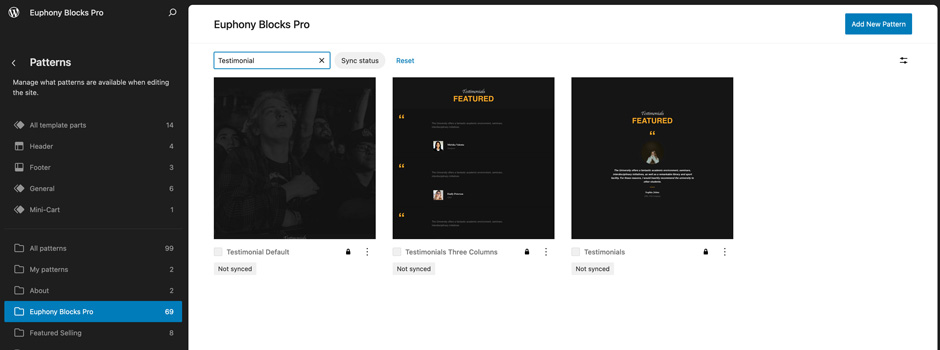
Testimonial Patterns allows you to display feedback of your customers. Euphony Blocks Pro supports 3 Testimonial patterns.
Here is how you add Testimonial Default:
Music on Apps
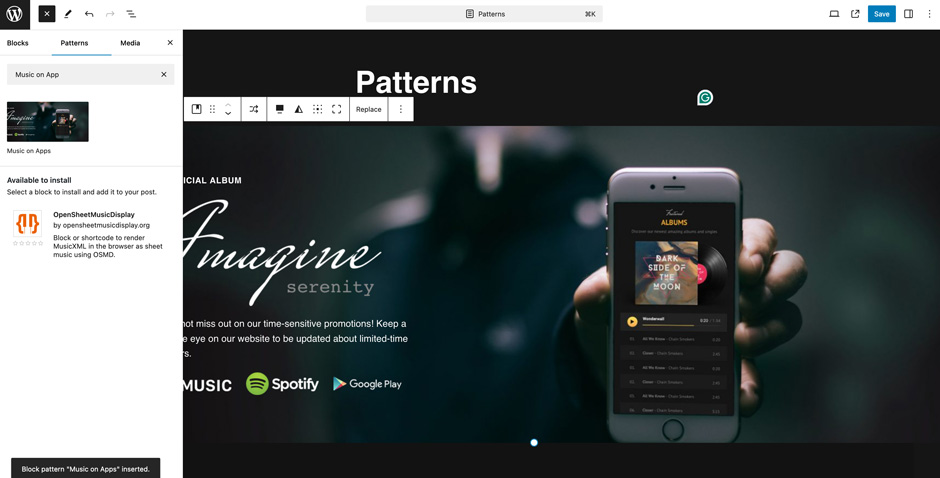
Euphony Blocks Pro supports Music on Apps pattern, this pattern allows you to display your Apps to your audience.
Here is how you add Music on Apps:
Footer Patterns
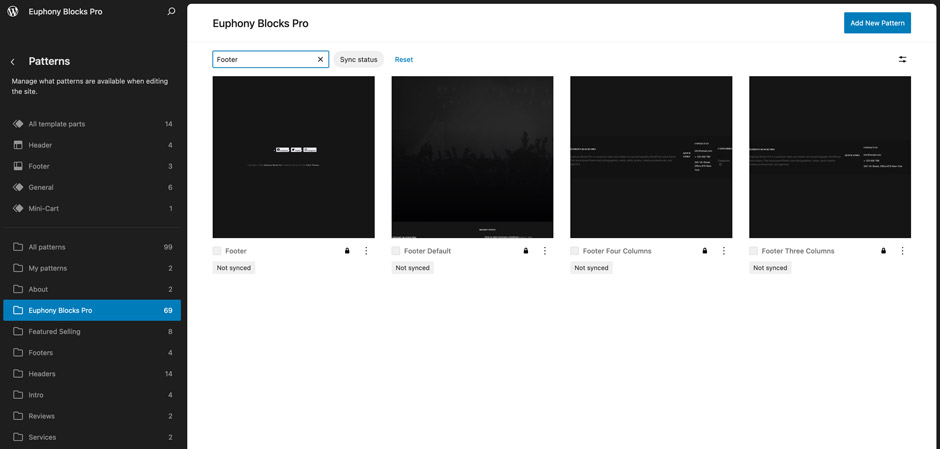
Footer Patterns allows you to display Footer content. Euphony Blocks Pro supports 4 Footer patterns.
Footer Default
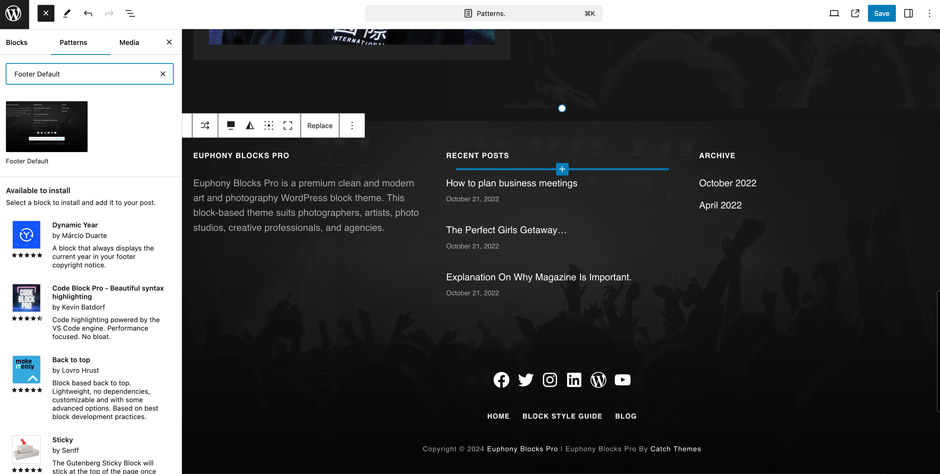
The Footer Default pattern allows you to insert a section that you can display footer 3 columns content and footer copyright. In the pattern, by default, there are three columns and you can use the columns to add quick information, useful links, recent posts, your contact info including your social icons, and also footer copyright content.
Logo Pattern
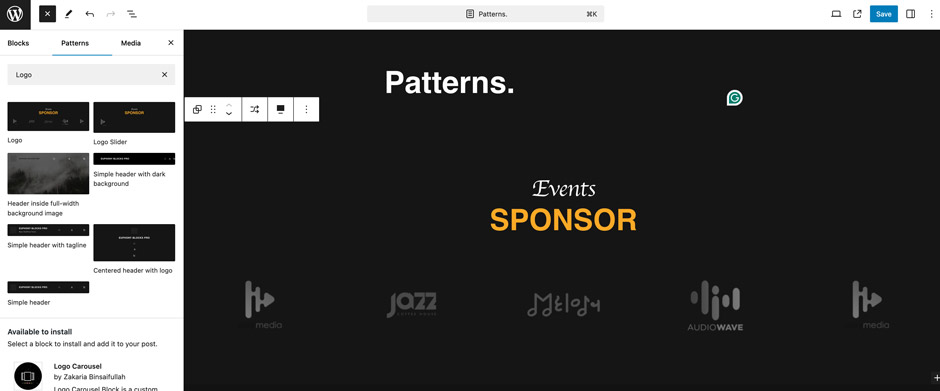
Euphony Blocks Pro Supports Logo pattern, this pattern can be used to display logos of different brands you are associate with.
Here is how you add Logo Patterns:
WooCommerce Block Supported Patterns
Euphony Blocks Pro supports WooCommerce Blocks. You will have to install and activate WooCommerce Plugin to use these pattern. You can add Featured Products in these patterns.
Here are the patterns that supports WooCommerce Blocks:
How to to duplicate sections?
Duplicate section can be used if you want add similar section in your pattern.
For Example: If you want to add one more column in between your Featured Content Duplicate section can be used, as it will create similar section and you can edit the content accordingly.
Duplicate section is very easy step to add on particular sections in your pattern. It can be done in two ways via Clicking on content or Table of content (List View)
1. Step of Duplication By Clicking on content:
2. Steps of Duplication by using List View
Templates in Euphony Blocks Pro
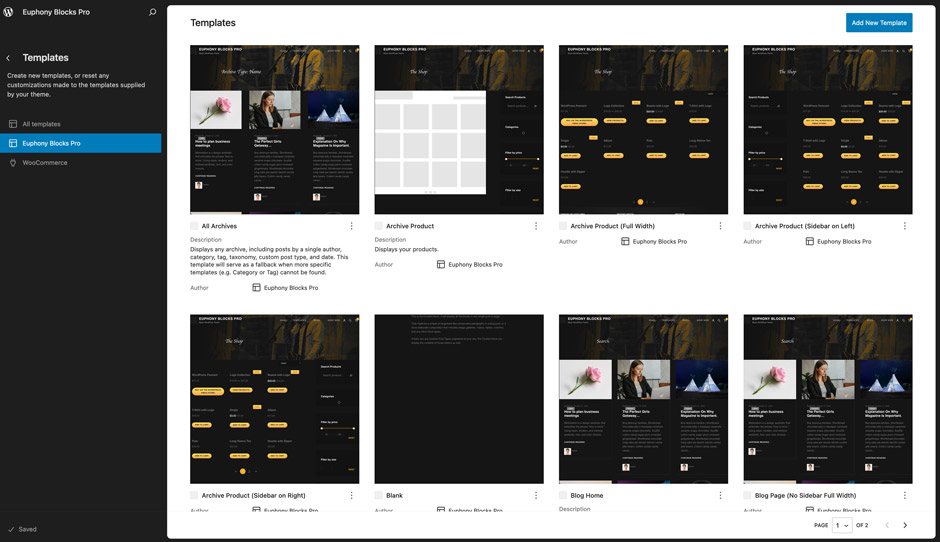
You can find 30 Templates provided by Euphony Blocks Pro. You can customize these templates if you feel like changing anything on a certain template and wish to see those changes across your site.
Editing Templates

Front Page

Euphony Blocks Pro Supports Front Page template, this template is used to display static Front Page.
Template Parts in Euphony Blocks Pro
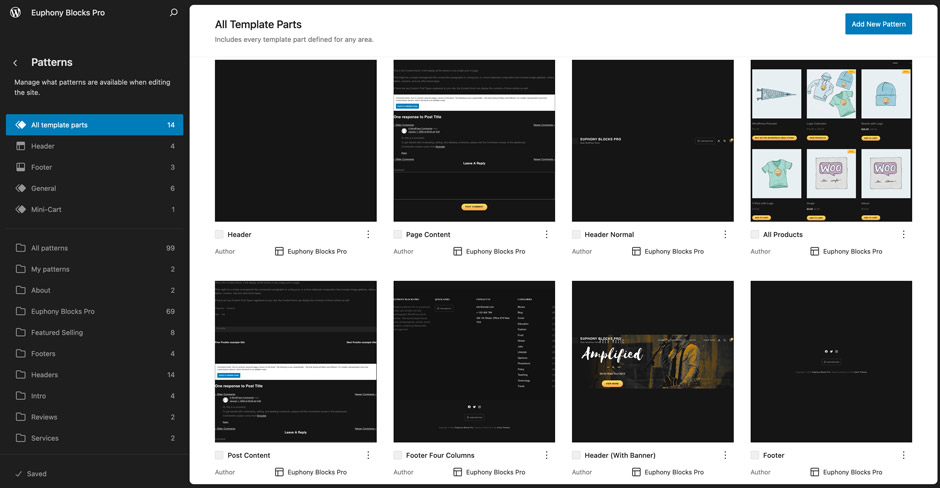
There are 12 Template Parts in Euphony Blocks Pro.
Euphony Blocks Pro supports WooCommerce Template Part. You will have to install and activate WooCommerce Plugin to use these WooCommerce Template Parts.
Editing Template Parts
Change Log
2.3 (Released: August 27, 2026)
- Bug Fixed: Corrected the spelling of WordPress in the social icon list and in two stylesheet comments
- Bug Fixed: Critical error on the Themes screen while checking for theme updates
- Bug Fixed: Security issue where a specially crafted dashboard link could run scripts in the admin area
- Bug Fixed: Update notice showed an empty box instead of the new version and update link, and background update checks stopped working after the first check
- Bug Fixed: License page could stop loading half way when the license server was unreachable
- Bug Fixed: Product quantity fields reset to zero on the cart page and gained duplicate plus and minus buttons after a cart update
- Bug Fixed: Missing arrow icon on arrow style buttons, and missing next post icon on translated sites
- Bug Fixed: Header search and social panels could stop working on some header layouts
- Bug Fixed: Music Playlist and Sticky Playlist patterns stayed dark when the Light style was selected
- Bug Fixed: Empty cart page linked to an invalid address, and a Front Page template appeared in the editor with nothing behind it
- Added: Single Post and Single Page templates with the sidebar on the right
- Improved: Theme is now fully translatable, with bundled language files loading correctly
- Improved: Hidden helper patterns removed from the pattern inserter, and demo site links and data removed from the playlist patterns
- Bug Fixed: Testimonial, Portfolio, Contact and Secure Transactions sections lost their background panel, most visibly on the Light style
- Updated: WordPress 7.1 ready
2.2 (Released: June 23, 2026)
- Bug Fixed: Welcome panel background color issue in theme admin page
- Bug Fixed: Mobile menu spacing and layout issues on small screens
- Updated: Renamed border-color slug to border-default-color to avoid conflict with WordPress core styles naming
- Updated: Navigation block in headers
- Updated: WordPress 7.0 ready
2.1 (Released: March 19, 2026)
- Added: Product Collection template part
- Added: Custom JS for WooCommerce quantity buttons
- Added: WooCommerce Filter for mobile devices
- Added: Product FAQ pattern
- Added: Secure Transactions pattern
- Added: Shopping Features pattern
- Bug Fixed: Spacing issue in patterns
- Bug Fixed: Product category design issue after WooCommerce plugin update
- Updated: Single Product template with newly added patterns
- Updated: All the classic/static WooCommerce product patterns, parts, and templates
- Updated: Minor CSS
- Updated: FSE Pro plugin version 2.1.3
2.0.1 (Released: December 31, 2025)
- Updated: WordPress 6.9 ready
- Updated: FSE Pro plugin version 2.1.2
2.0 (Released: July 24, 2025)
- Updated: FSE Pro plugin version 2.0.3
- Updated: Slider patterns updated for FSE Pro plugin update
- Updated: Featured videos pattern
- Updated: Theme license notice
1.2.2 (Released: June 12, 2025)
- Bug Fixed: Missing fonts added
1.2.1 (Released: June 04, 2025)
- Updated: FSE Pro plugin version 2.0.2
1.2 (Released: May 12, 2025)
- Bug Fixed: Attempt recovery in multiple patterns after fse-pro plugin update
- Updated: FSE Pro plugin version 2.0.1
- Updated: Query Post meta position in editor
1.1.1 (Released: April 21, 2025)
- Updated: FSE Pro Plugin 1.5.1
1.1 (Released: April 16, 2025)
- Updated: FSE Pro 1.5 plugin zip file
- Updated: WordPress 6.8 ready
1.0.2 (Released: April 04, 2025)
- Bug Fixed: WooCommerce quantity input in single product page
- Bug Fixed: Woocommerce filter by size and color issue
- Updated: Size of mini cart and customer account icons
- Updated: Theme.json file
- Updated: WordPress 6.7 ready
1.0.1 (Released: November 09, 2024)
- Added: Best Selling Products pattern
- Bug Fixed: Attempt block recovery issue in hero content with accordion pattern
- Bug Fixed: Full width issue in editor of footer default pattern
- Bug Fixed: Popup video issue in promotional video pattern
- Removed: Unnecessary hidden pattern
1.0 (Released: October 24, 2024)
- Initial Release
Satisfaction Guarantee
We make sure our customers are fully satisfied with our WordPress themes and meet their expectations. If you are not satisfied with your purchase, you are entitled to our 30-Day 100% Money Back Guarantee. No risks, Buy with Confidence!