
You can make your knowledge base visually appealing and user-friendly with BetterDocs‘ unique doc list icon customization feature. Customize default icons and design unique icons for single documents, grid layouts, or the sidebar. You can easily modify these icons using pre-defined options or upload your own. Let us explore how to change docs list icon in your knowledge base in different ways below:
Globally Change Docs List Icon #
Changing all doc list icons is ideal for constantly looking across your knowledge base. You can do it in just two steps. Follow these steps to change your icons globally.
Step 1: Navigate to the Layout Settings in BetterDocs Plugin #
Go to the BetterDocs plugin dashboard in the wp-admin menu and select âSettingsâ from the submenu. Then, click on the âLayoutâ tab in settings.

Step 2: Upload Icon, Save And Preview #
Click on the âClick to uploadâ button and select your desired icon image. Scroll down and click on the âSaveâ button. To view your updated icon, navigate to the âAll Docsâ page and view your knowledge base.

Change Docs List Icon in Theme Widget #
You can customize the doc list icon on the BetterDocs widget in the theme customization settings. Here, you can change the list icons of the Docs page, Single Doc, Sidebar, and Category Archive. To do that, follow the guides for each category below:
Docs Page List Icon #
As an admin, you can personalize your docs page list icons in just a few clicks in the BetterDocs theme widget. Follow the below steps:
Step 1: Go to BetterDocs Widget And Choose layout #
Go to your WordPress docs page. Click âCustomizeâ in the top bar. In theme customizer settings navigate to the BetterDocsâDocs Page. Choose a layout category that has a doc list.

Step 2: Upload Icon File And Publish #
Scroll down to the âDoc List Iconâ section. Then, upload your desired icon file. Finally, click âPublishâ to update the icons.

That is it! Your doc list will now display your custom icon.
Change Icon in Sidebar #
For customizing the list icon displayed in the sidebar widget, follow these steps:
Step 1: Access Sidebar Widget Settings #
In the theme customizer settings menu, navigate to BetterDocs â Sidebar.
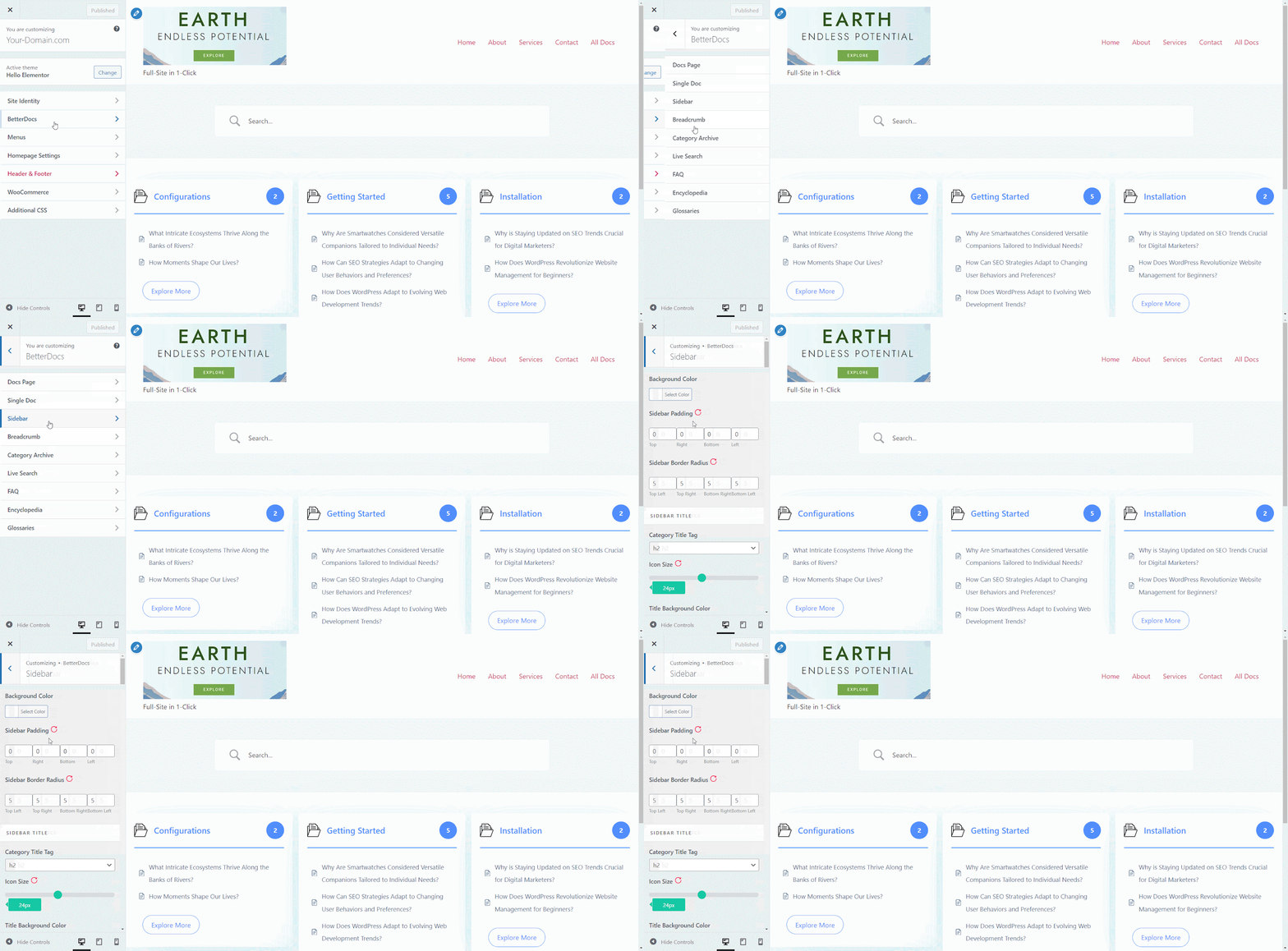
Step 2: Upload Icon And Publish #
Scroll down to the âList Iconâ in the sidebar content section and upload your desired icon file. Click âPublishâ to update the icons.

Your sidebar widget doc list will now display your custom icon.
Change Icon in Category Archive #
To change the list icon displayed in the Category Archive section, follow these steps:
Step 1: Access Category Archive Settings #
In the theme customizer settings menu, navigate to BetterDocs â Category Archive.
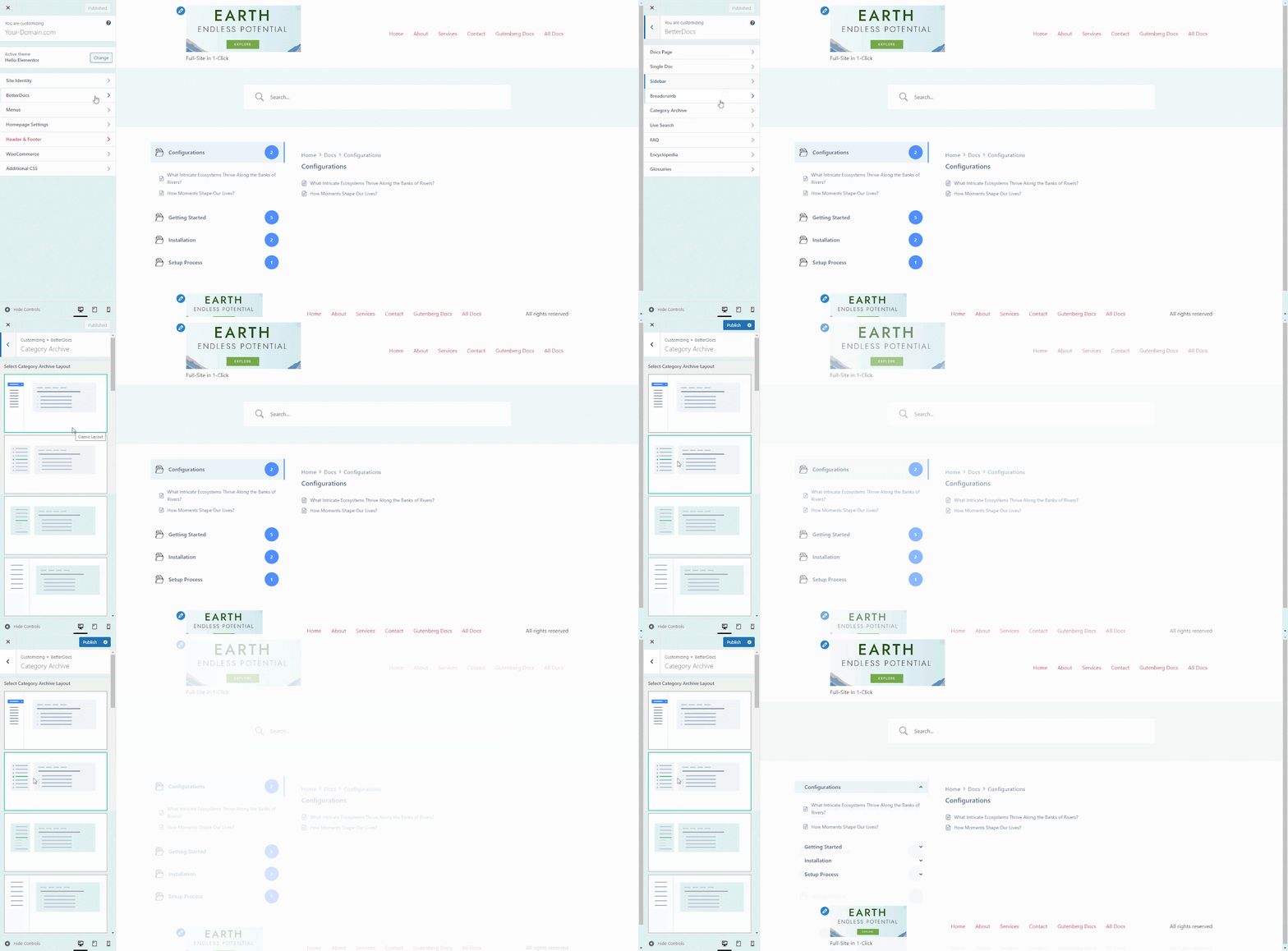
Step 2: Upload Icon And Publish #
Scroll down to the âList Iconâ in the content area and upload your desired icon file. Click on âPublishâ to update the icons.
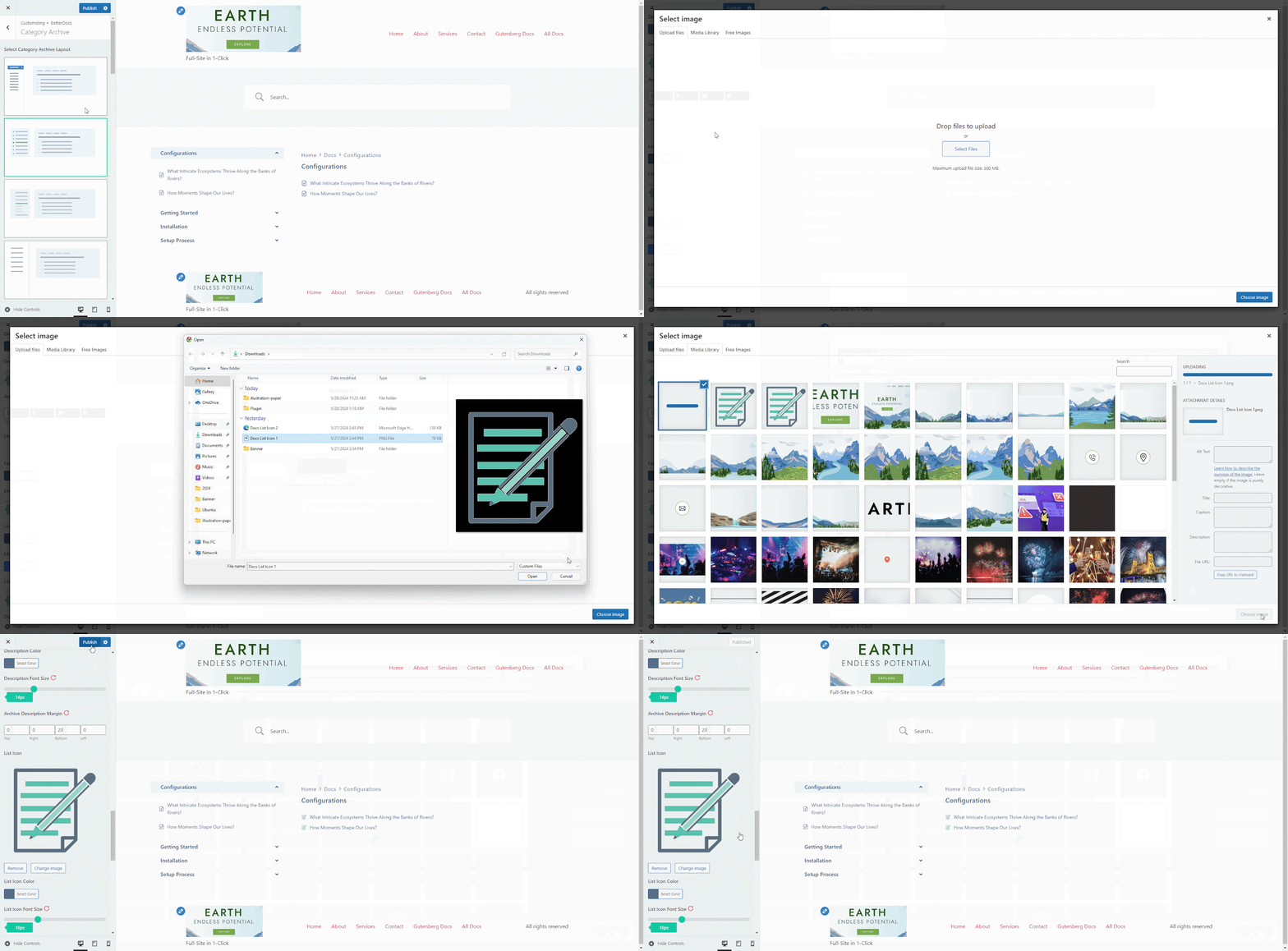
Your Category Archive doc list will now display your custom icon.
Change Docs List Icon in Gutenberg Blocks #
This guide details how to customize the list icons displayed within BetterDocs Gutenberg Blocks. You can personalize the icons for the Category Grid Block, Archive Doc List Block, and Sidebar Block.
Change List Icons of BetterDocs Category Grid Block #
In your WordPress, navigate to the page or post where you have added the BetterDocs Category Grid Block. Follow the below steps to add your customized icon.
Step 1: Access Block Settings And Locate Icon Options #
Click on the âEdit Pageâ from the wp-admin top bar, and select the block to open its settings in the right sidebar. Now, go to the âStyleâ tab. Then, scroll down to the âListâ section and expand it.

Step 2: Upload Icon And Save Changes #
Now, Upload your desired icon image file and hit the âUpdateâ button to save it.

This is how easy it is to customize your docs list icon in Guttenberg using BetterDocs.
Change Doc List Icon in BetterDocs Sidebar Block #
If you use the BetterDocs sidebar block as in your knowledge base created in Gutenberg, repeat these steps for each block individually to customize their icons. Change Icons of BetterDocs Siderbar Doc List Block following the below steps.
Step 1: Access Block Settings And Find Icon Options #
Select the BetterDocs sidebar block on your page and go to the âStyleâ tab in the sidebar settings. Scroll down to the âDocs Listâ section to locate the âList Iconâ option.

Step 2: Customize Icons And Publish #
Click on the âUploadâ button, select your customized image, and hit âOpenâ. Click âUpdateâ to save your icon settings and update the block on your page.

Change Icon in BetterDocs Archive Doc List Block #
If you use the BetterDocs Archive Doc List Block, repeat the below steps for each block to customize their icons individually.
Step 1: Access Block Settings And Locate Icon Options #
Select the BetterDocs Archive Doc List Block on your page and go to the âStyleâ tab in the sidebar settings. Locate the âIconâ option to upload your icon file.

Step 2: Choose & Apply Icon And Save #
Click on the âUploadâ button, select your icon file, and hit âOpenâ. Click âUpdateâ to save your icon settings and update the block on your page.

By following these steps, you can successfully customize the list icons displayed within the BetterDocs Category Grid Block, Archive Doc List Block, and Sidebar Block in Gutenberg. Remember that the specific options and settings might vary slightly depending on your theme and BetterDocs version.
Change Docs List Icon in Elementor Widget #
Let us explore how to customize the list icons displayed within the BetterDocs Category Grid widget in Elementor. Before customizing icons, the Elementor plugin should be installed and activated on-site and have the customized icon in SVG format.
Step 1: Access Widget Settings #
In your Elementor page editor, select the BetterDocs Category Grid, you can also select it from the navigator panel. Go to the âStyleâ tab in the widget settings on the left sidebar and expand the List section.

Step 2: Locate And Customize Icon Options #
Scroll down and hover over to the icon. Two options will appear to change the icon. We will choose the âUpload SVGâ option. Select the custom doc Icon SVG file and hit the âInsert Mediaâ button.

Click on âUpdateâ to save your changes on the Elementor editor BetterDocs Category Grid Docs list icon on your page.
BetterDocs offers a flexible solution to customize the appearance of your knowledge base through doc list icon modifications. By following the provided steps and exploring the available icon options within your theme, you can significantly enhance the visual appeal and user-friendliness of your knowledge base.
If you require further assistance with customizing doc list icons or have any other inquiries related to BetterDocs, feel free to reach out to our dedicated support team.


